Theme Installation Manual
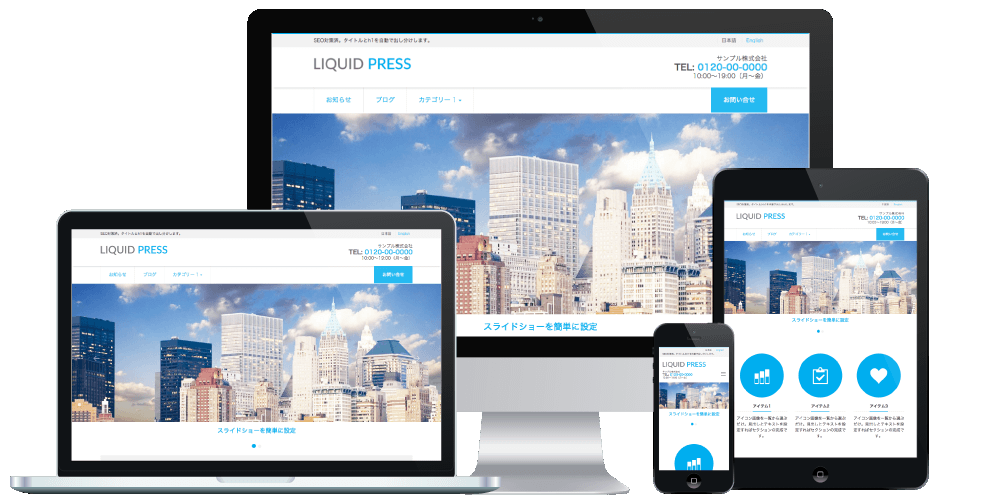
LIQUID PRESS MAUNAL-
Installation
-
How to install WordPress
For information on installing WordPress itself (free of charge), please refer to your server provider's manual or to the links below.
* Installation of WordPress itself and server configuration are outside the scope of our support. -
How to install the theme
There are two methods.
A. Install from the WordPress admin screen
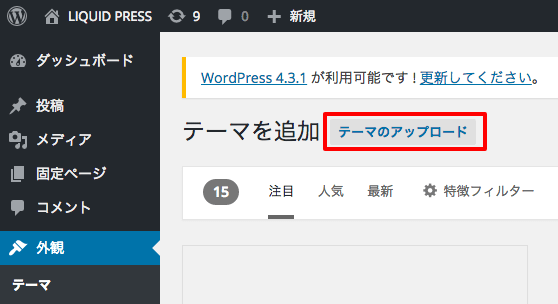
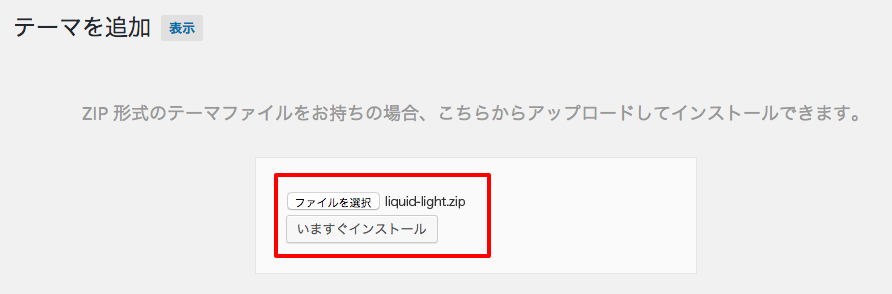
Go to WordPress admin screen > Appearance > Add New > Upload Theme and upload the zip file.
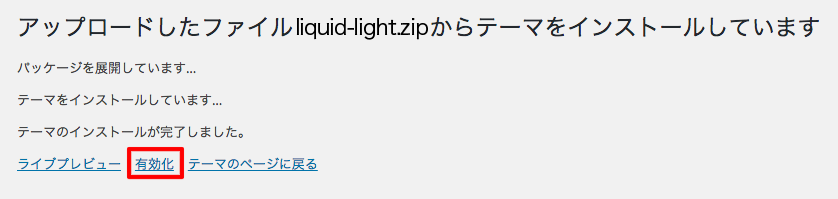
Once the installation is complete, click "Activate" to finish.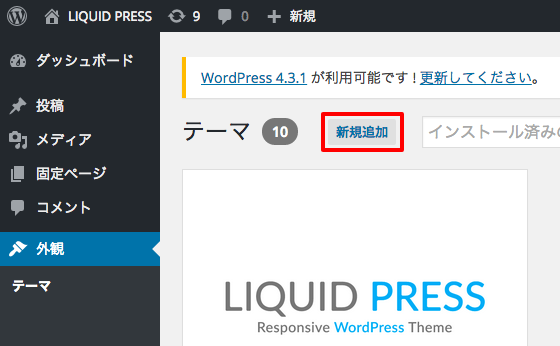
B. Install via FTP software
Upload the complete set of files extracted from the zip to /wp-content/themes/ using FTP software.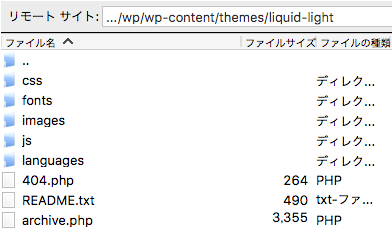 Then go to WordPress admin screen > Appearance > Themes and click "Activate".
-
Updating the theme
-
How to update the theme
A. Automatic update
When a new version is available, "There is a new version available" will be displayed on the theme under WordPress admin screen > Appearance.
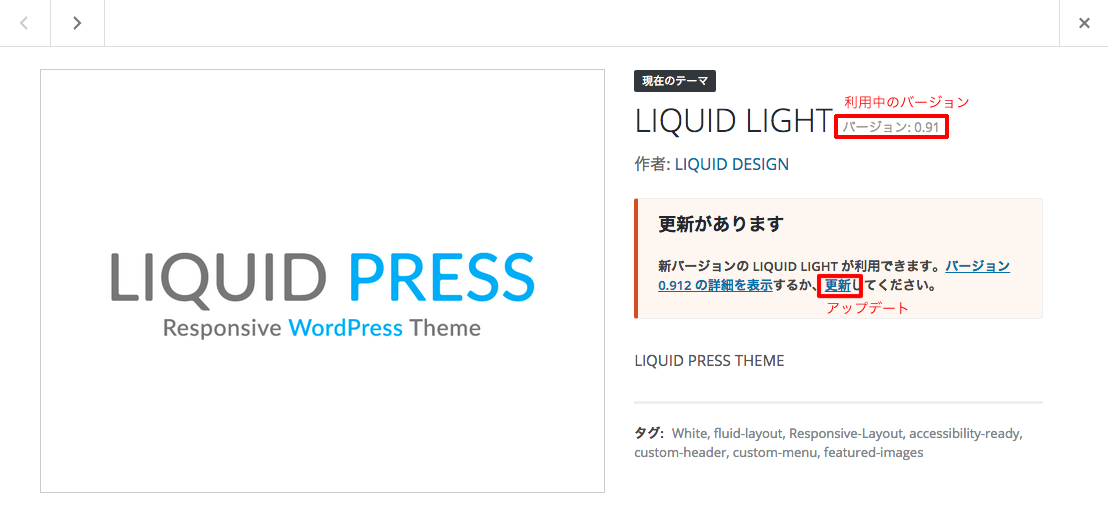
Click that area, then click "Update" on the next screen to update the theme.
* If a new version should have been released but "There is a new version available" is not displayed, please check the next section.
* If you have edited php files directly, your edits will be reverted by the update. We recommend customizing via "Custom HEAD/CSS" or a child theme, which are not affected by updates.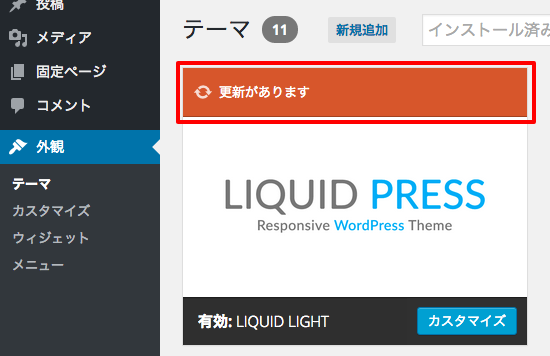
B. Manual update
With the subscription plans, we provide the latest zip file as well as previous versions.
You can update using the zip file from WordPress admin screen > Appearance > Add New > Upload Theme. Click "Replace current with uploaded" to complete the process.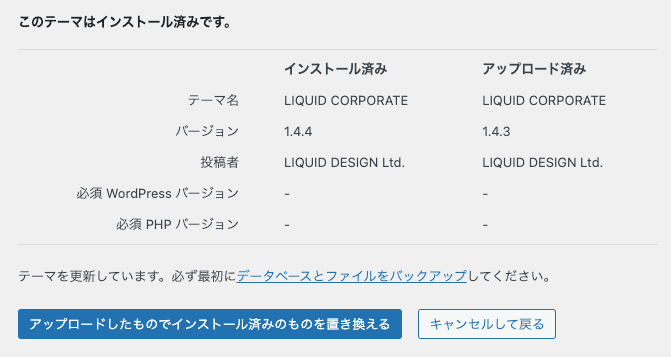
-
How to check for theme updates
Go to WordPress admin screen > Dashboard > Updates and click "Check Again".
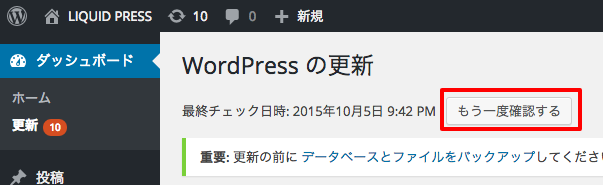 * For multisite installations, only themes activated on the main site (the first blog) can be updated, so please activate the theme on the main site before updating.
If automatic updates are not possible due to your server environment or other reasons, please perform a manual update. -
How to review theme update details
You can check the latest information, including update details, from WordPress admin screen > Appearance > Theme Support.
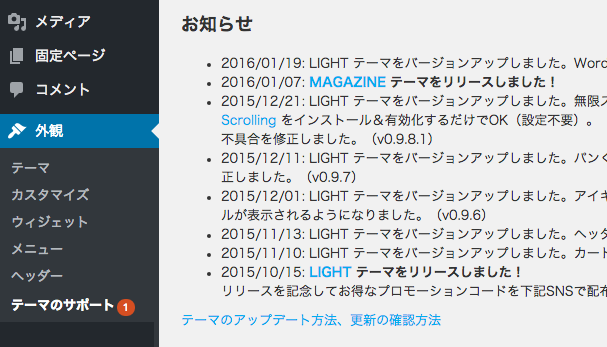 Update details and development status are also published on GitHub, so please refer to that as well.
-
Updating WordPress itself
Always create a backup before updating WordPress itself.
- Upgrading WordPress
- Network Admin / Updates Screen (for multisite)
* We verify theme operation with the latest version of WordPress itself, but depending on the contents of the core update, the theme may also require an update.
* Announcements are provided under WordPress admin screen > Appearance > Theme Support, so please check there (theme updates may take some time).
* Please also check the compatibility status of third-party plugins before upgrading WordPress itself. WordPress core and plugins are outside the scope of our support.