WordPress Article Posting Manual
LIQUID PRESS MAUNAL-
How to Post an Article
This page explains how to post articles in WordPress and covers convenient editing techniques.
LIQUID PRESS supports the block editor (Gutenberg, WordPress 5.0 or later).We have released a free Gutenberg block template plugin!
Block Editor (Gutenberg) Manual
How to use the WordPress block editor
Design and customization in the block editorWordPress User Manual
Please view the PDF from WordPress Dashboard > Appearance > Theme Support (*excluding the trial version).
-
Posts
Add a new article or edit an existing one from WordPress Dashboard > Posts.
Post pages are displayed in the latest article list and similar places.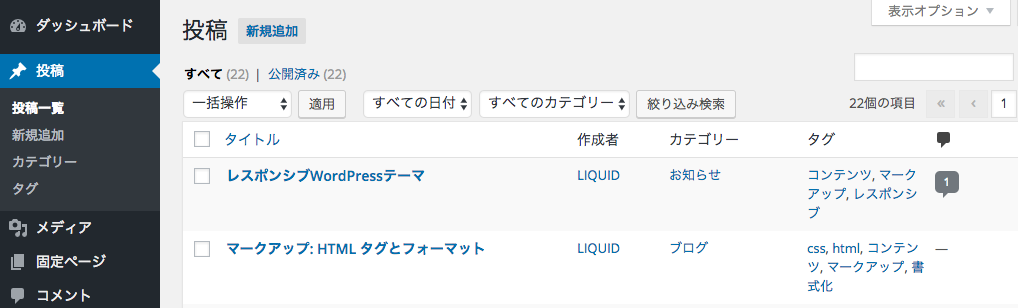
-
Placing Images
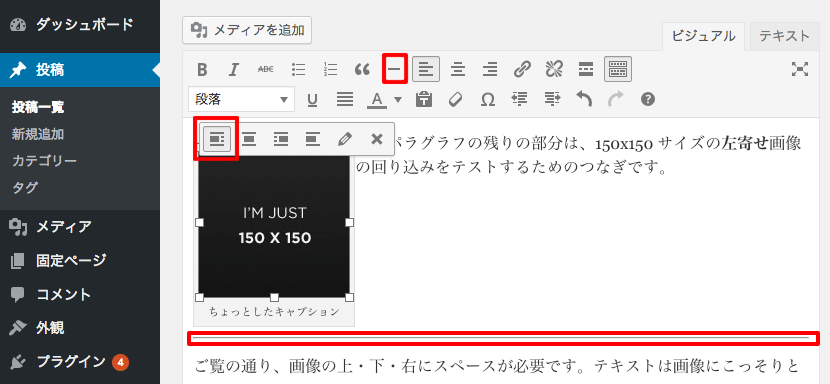
Click a placed image and set it to "align left" or "align right" to make text wrap around the image.
-
Clearing Image Wrapping
You can clear image wrapping by inserting a "horizontal line" (hr tag).
Alternatively, you can clear wrapping by adding the "clearfix" class to the element immediately before the point where you want to clear it. -
Featured Image
Select the article's "featured image" from the lower right of the editing screen. It is displayed as the thumbnail on list pages, in Twitter Cards, and so on, so we recommend setting it.
Image sizes are automatically optimized for display, so we recommend a size of 1,000px or more in width.
An aspect ratio of 2:3 (9:16 for LIGHT) makes thumbnails display attractively.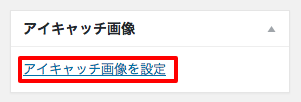
Featured Image Within Articles
Whether or not the featured image is automatically displayed within an article can be configured from WordPress Dashboard > Appearance > Customize > Layout. *The LIGHT theme is not supported. -
YouTube Videos
You can embed and display YouTube videos.
Automatic responsive display of videos is also supported.
For how to obtain the embed code, please see the official manual: Embed videos. -
Headings
The article title is displayed as Heading 1 (h1), so we recommend using Headings 2-6 (h2-h6) for headings in the body text. To customize heading styles, please use Custom CSS.
-
Categories / Tags
"Related articles" are displayed automatically based on categories or tags, so we recommend setting both.
You can create and edit them from Dashboard > Posts > Categories or Tags.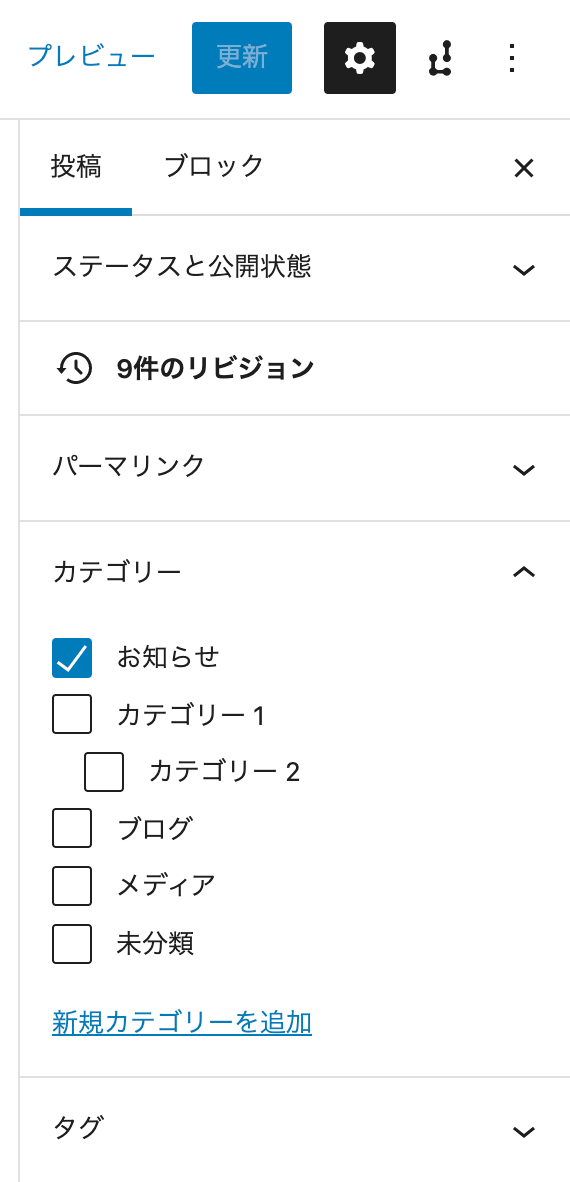
-
Blog Cards
Blog card display is supported. Simply enter a URL and the title and thumbnail are displayed with styling applied. It is also responsive.
If you do not want a blog card, enter the URL as a link (a tag).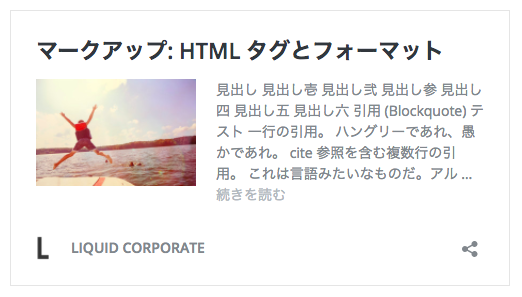 The image is for illustration purposes.
-
Page Splitting
Page splitting (page navigation, pager) is supported for posts and static pages.
Insert a "Page Break" block or "<!--nextpage-->" at the point in the body text where you want to split (no spaces needed). You can split into multiple pages.
Page numbers and links are displayed in the article footer.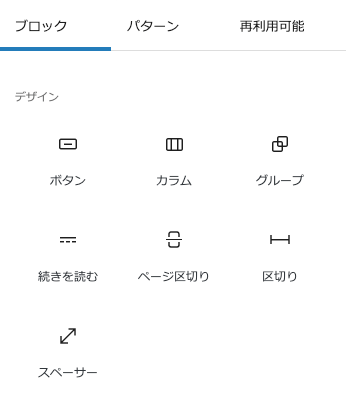
-
Tables
Tables display borders by default.
To hide the borders, specify the following on the table's HTML tag.<table class="table-bordered-none">Because tables are responsive, text is wrapped for display.
To prevent wrapping, specify the following on the table cell's HTML tag.<td nowrap="nowrap">In addition, to allow horizontal scrolling when the table is wider than the screen, create a wrapping element and specify it as follows.
<div class="table-responsive"><table>...</table></div> -
Static Pages
Add a new static page or edit an existing one from WordPress Dashboard > Pages.
Static pages are not displayed in the latest article list and similar places. -
Page Attributes
Template
Default template: a standard static page.
LIQUID: a simply designed static page with a single column and no breadcrumb list, share buttons, and so on.
*After changing this, the preview will not reflect it until you save or update.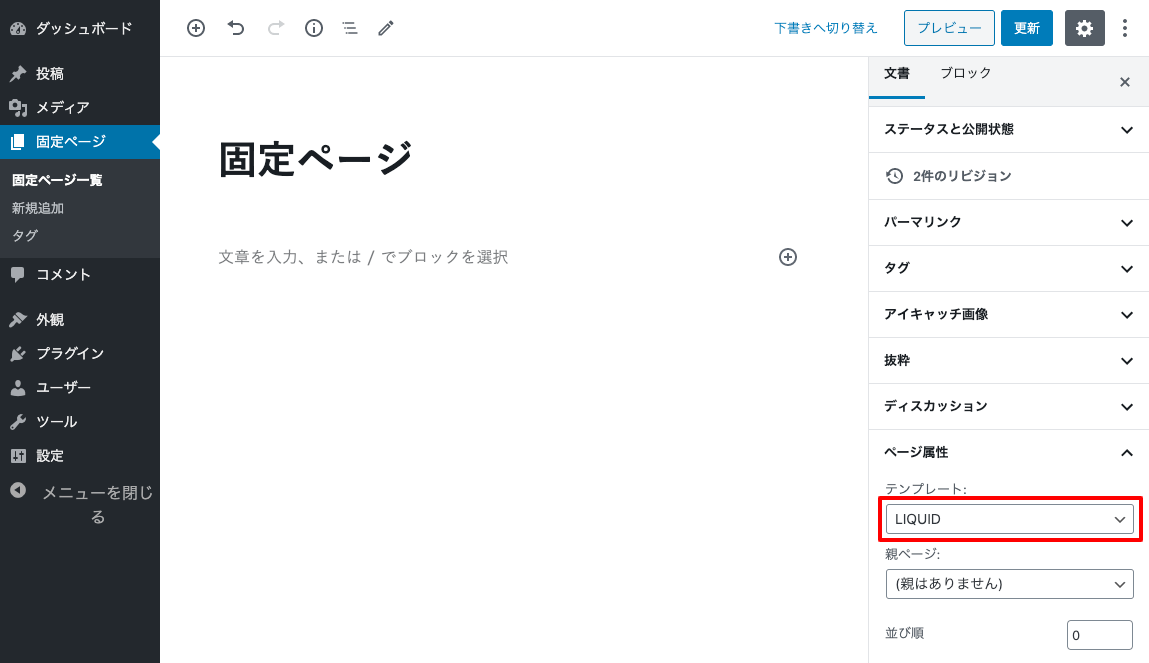
Parent Page
By selecting a parent page, you can create a hierarchical structure. The parent page's slug is also included in the URL.
Order
You can specify the sort order (ascending) used when pages are listed, for example in the static pages widget.
For how to use the block editor (Gutenberg), please see below.
Convenient ways to use the block editor and theme compatibility status