How to use the WordPress block editor
LIQUID PRESS BLOCK MANUAL-
How to use the WordPress block editor
New We have released the Block Pattern Gallery, ready to copy and paste!
LIQUID PRESS supports the block editor. With the block editor, you can easily create rich designs with no code.
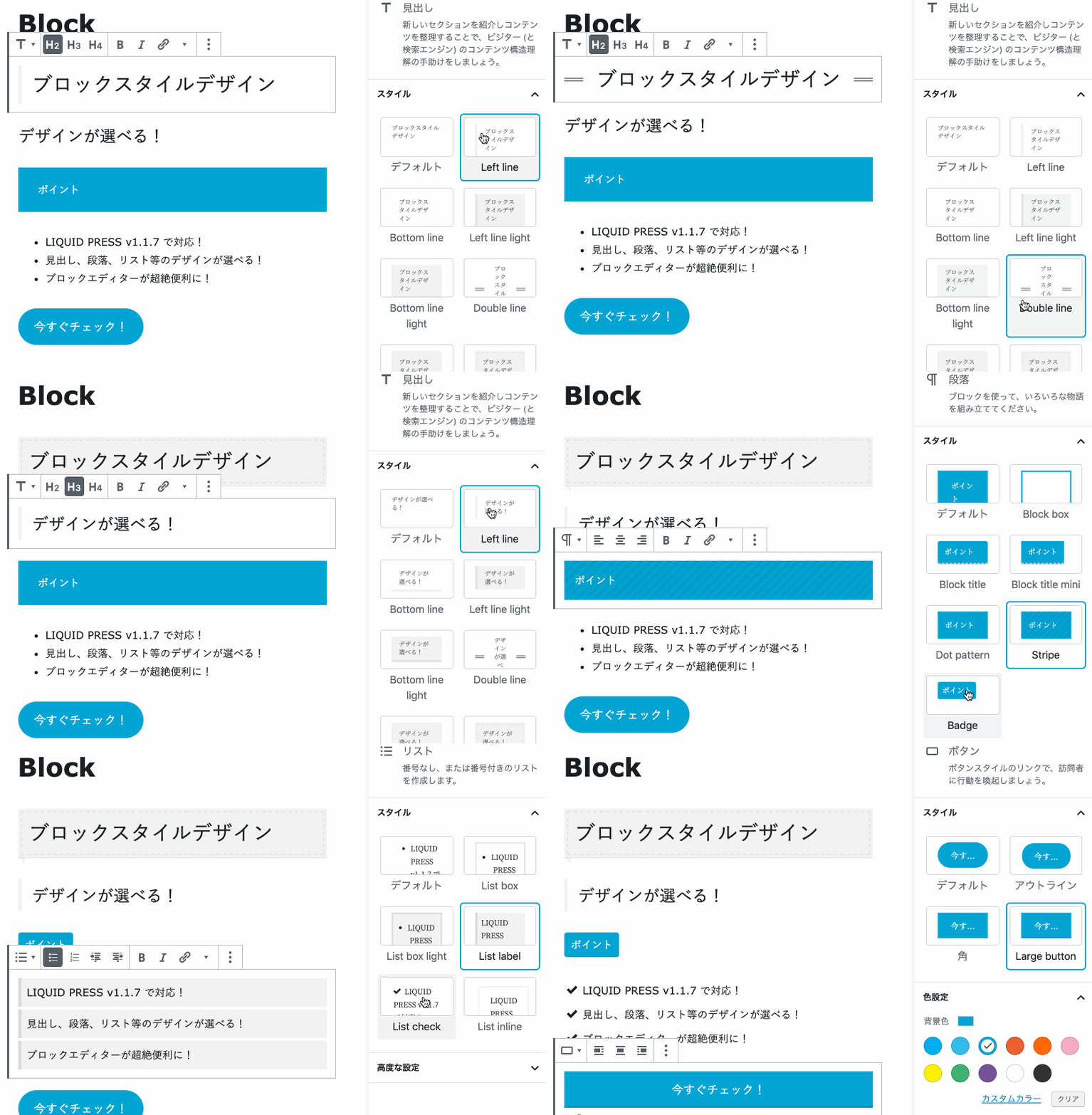
We have released the free Gutenberg block template plugin!
For popup banners, A/B testing, chatbots, conversational speech balloons and the like, plugins are available.
Notes
* The block editor depends on the core functionality of WordPress itself. Editor specifications may change as a result of changes to the WordPress core. Please understand this in advance.
* If you experience problems with the block editor, please see our FAQ. -
Names of the parts
Names of the parts of the block editor screen
Names of the parts of the block editor screen (as of WordPress 5.3).
* These differ depending on the version of WordPress itself.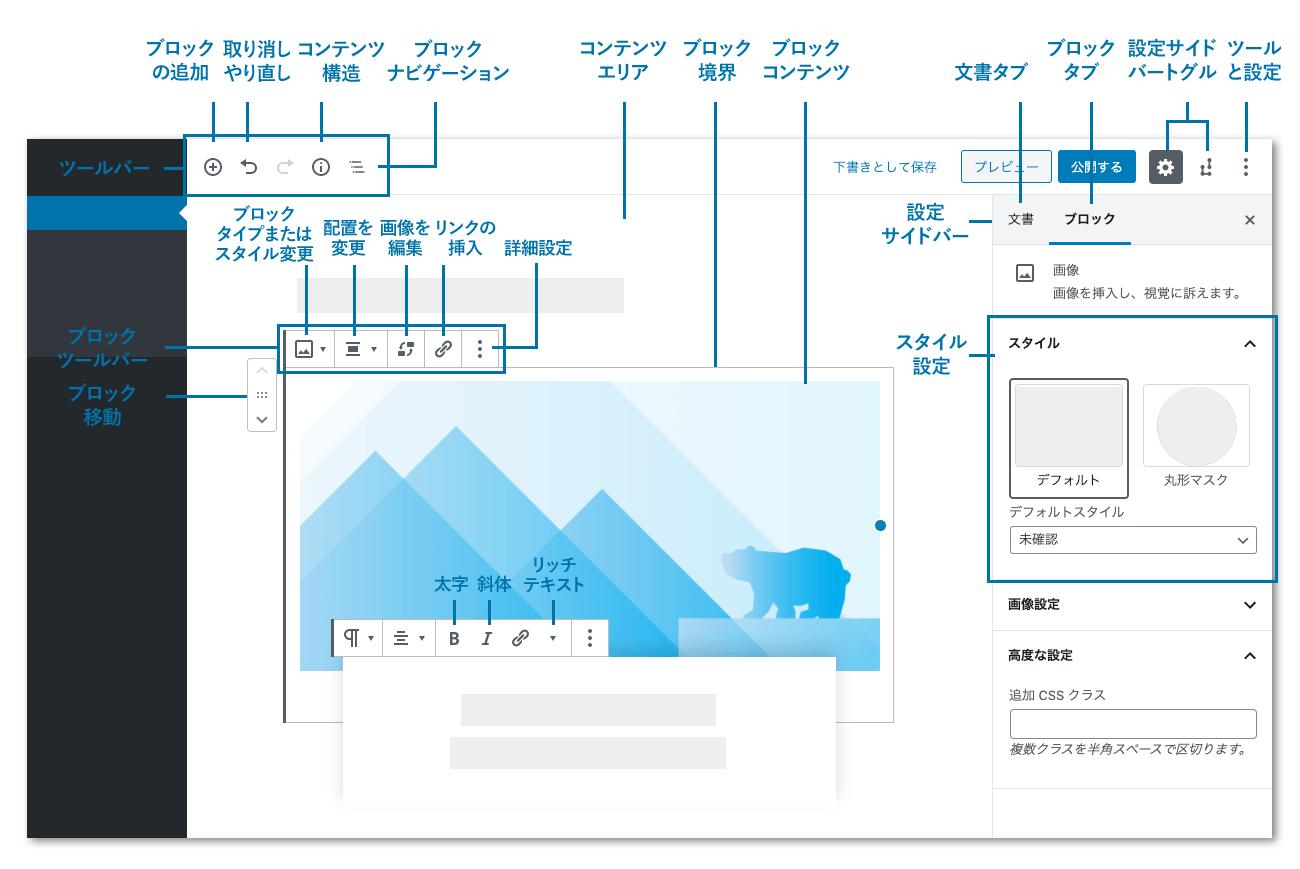
Document settings
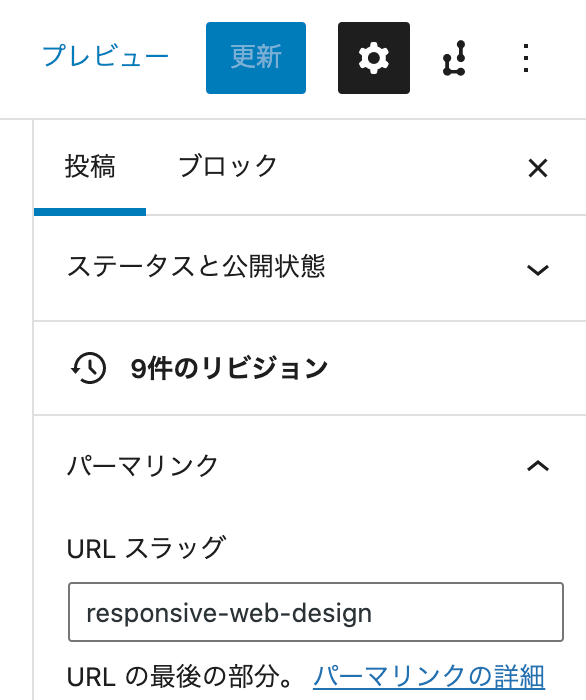
Permalink
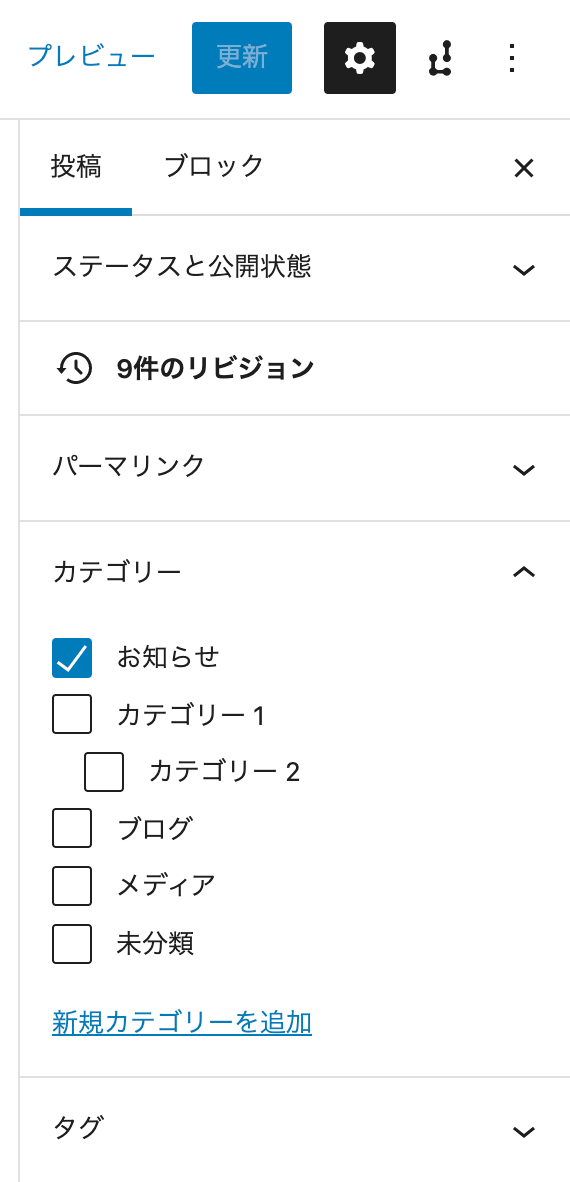
Categories and tags
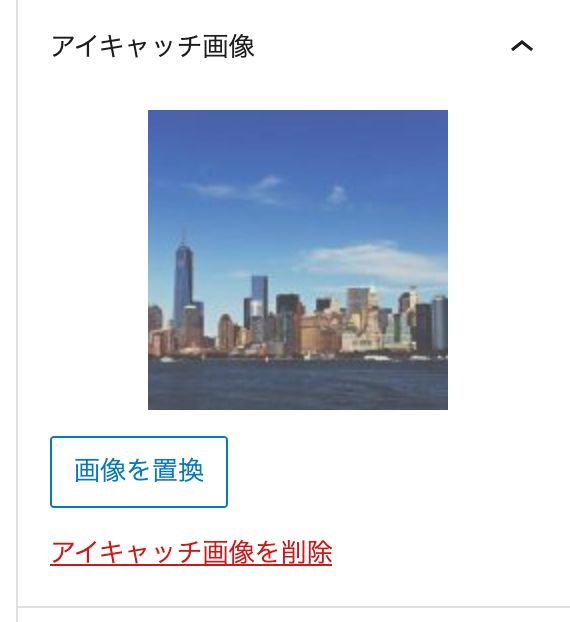
Featured image
-
Editor settings
Turning off fullscreen
From WordPress 5.5 onward, fullscreen mode is enabled by default.
You can turn it off by opening the tools settings at the top right and unchecking fullscreen mode.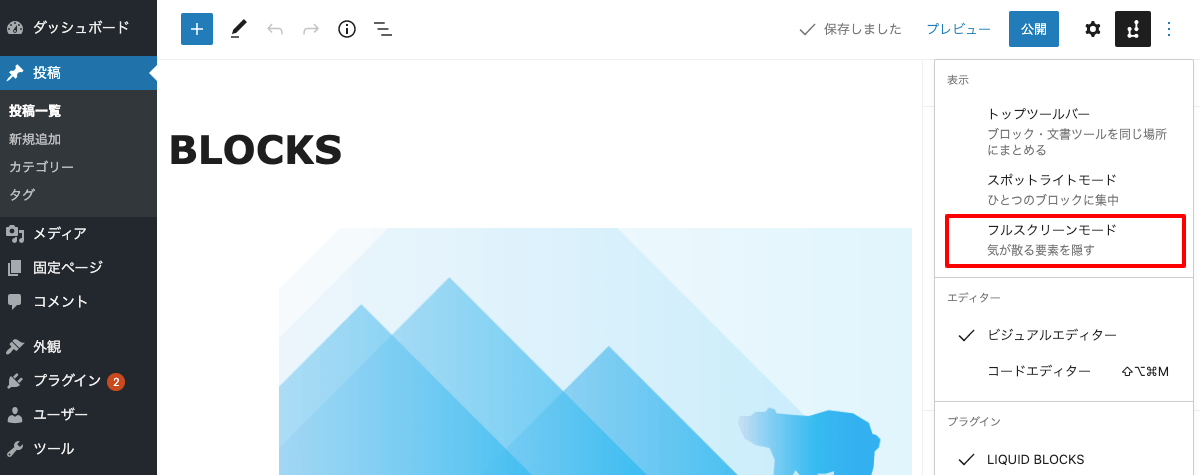
Top toolbar
The block toolbar that appears above each block can be fixed to the top.
Open the tools settings at the top right and check "Top toolbar". Try this if you find the standard setting hard to work with.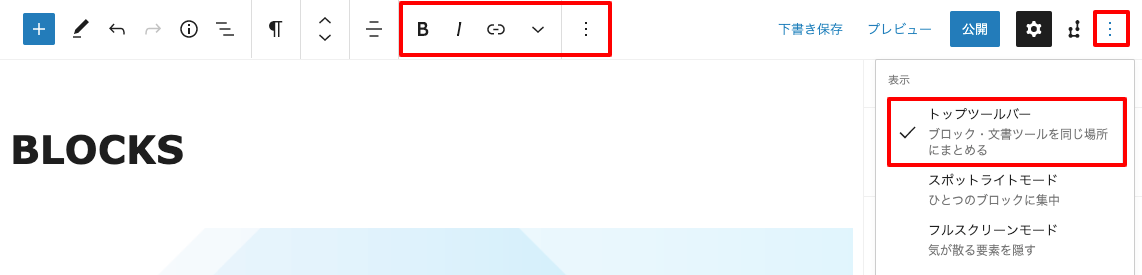
Block manager
You can customize which blocks appear as candidates when inserting.
Open the tools settings at the top right, click "Block manager", and uncheck the blocks you do not use. Change this if there are so many candidates that it becomes hard to use.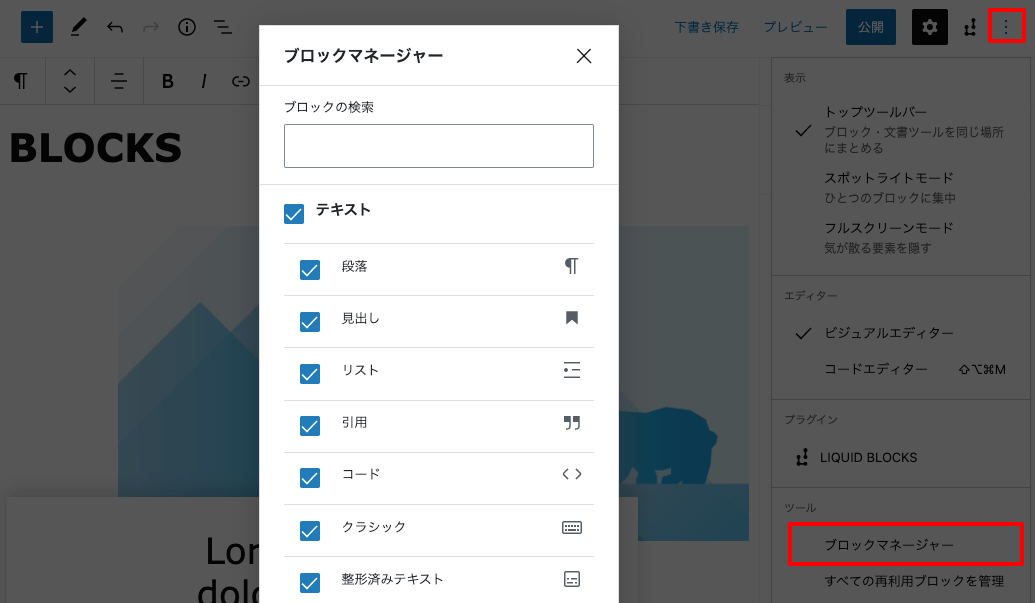
Manage reusable blocks
You can manage your reusable blocks.
Open the tools settings at the top right and click "Manage reusable blocks" to move to the management page. You can edit and delete them just like normal posts, and import and export them in JSON format.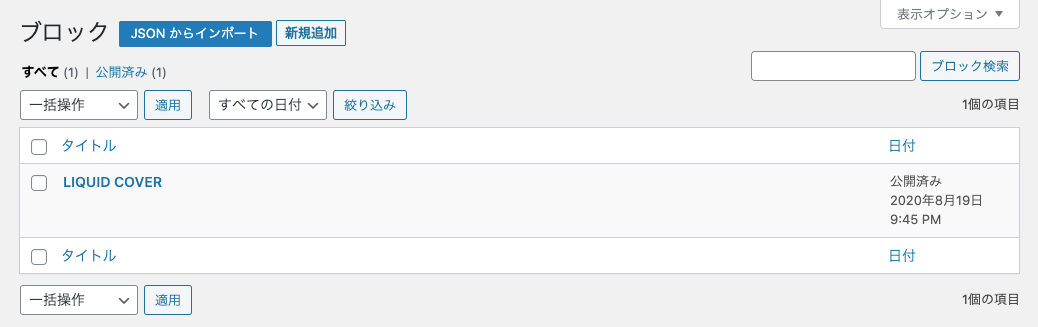
-
Creating blocks
Click the plus icon to display the available blocks (list of blocks).
Select a block to insert it. The contents of the block toolbar, sidebar and menus differ depending on the block.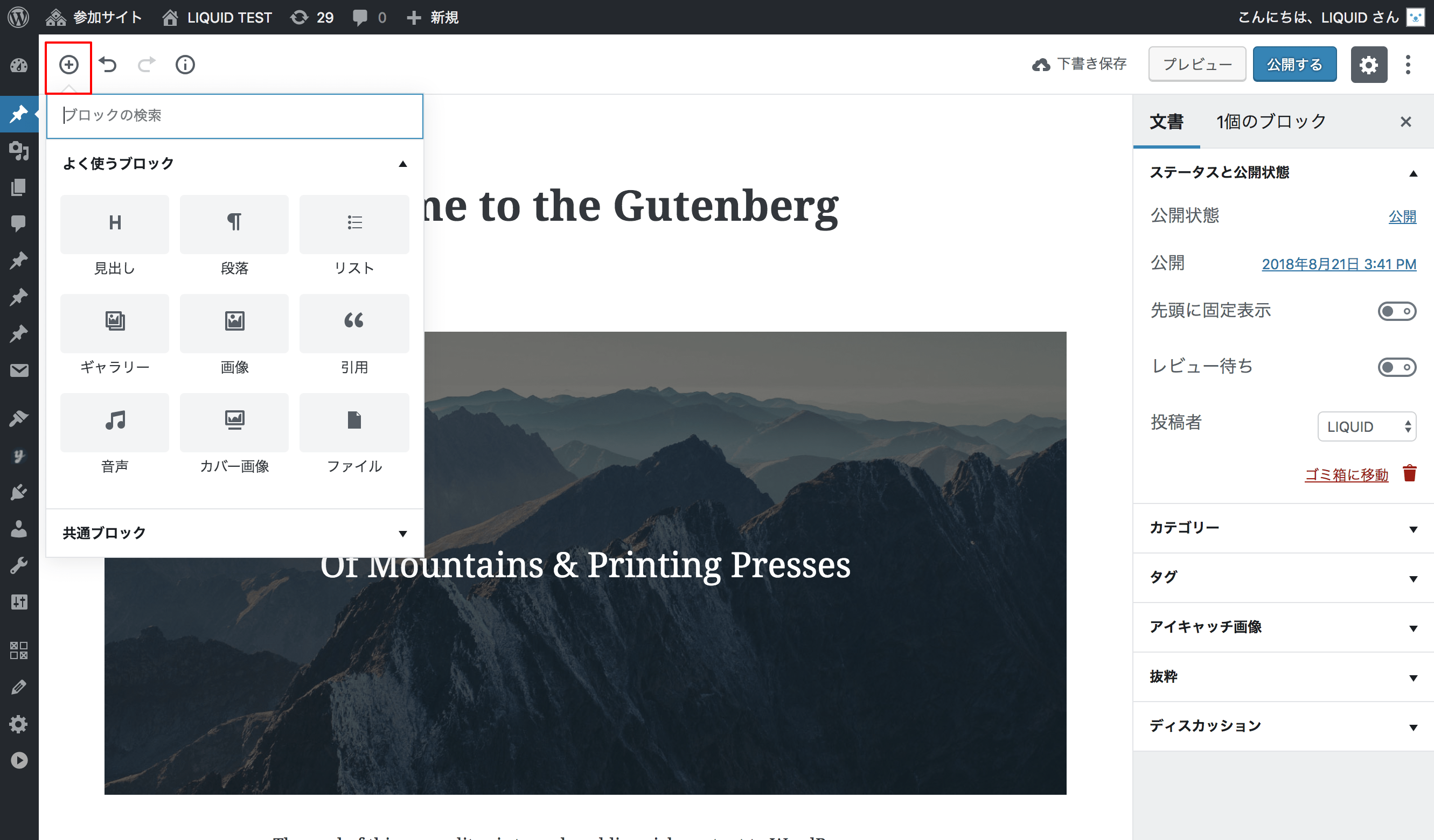
Representative blocks
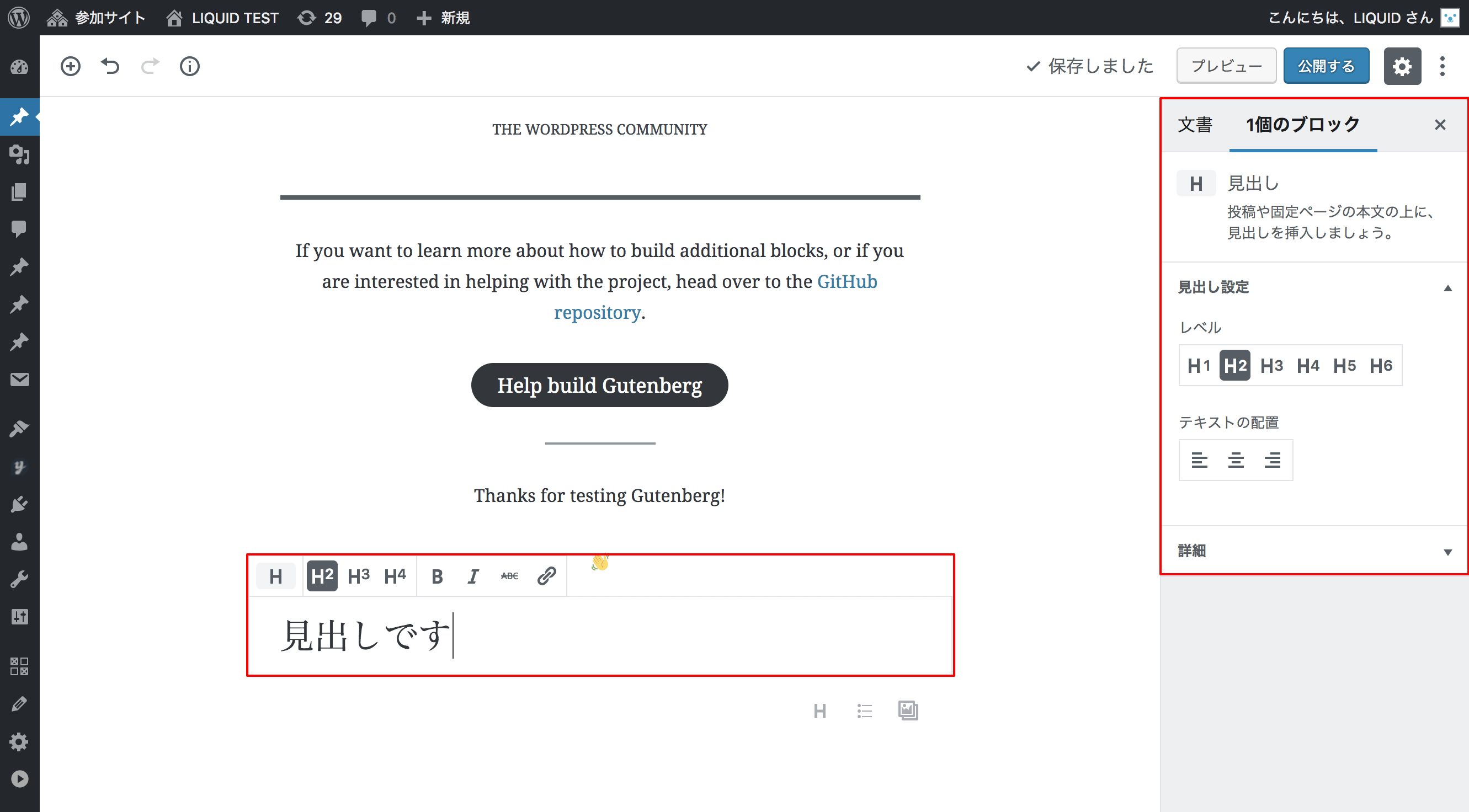
Heading block
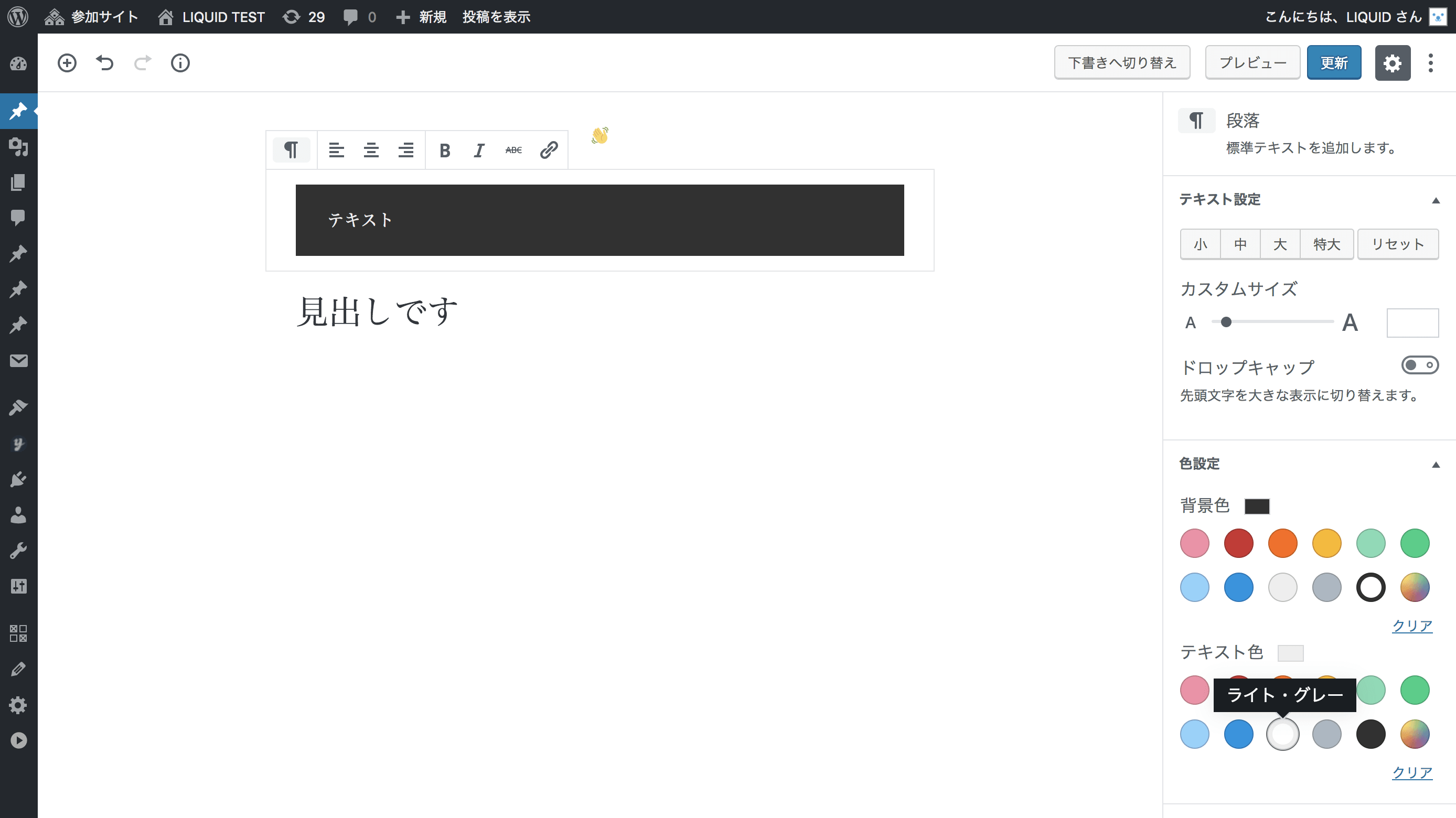
Paragraph block
Gallery block
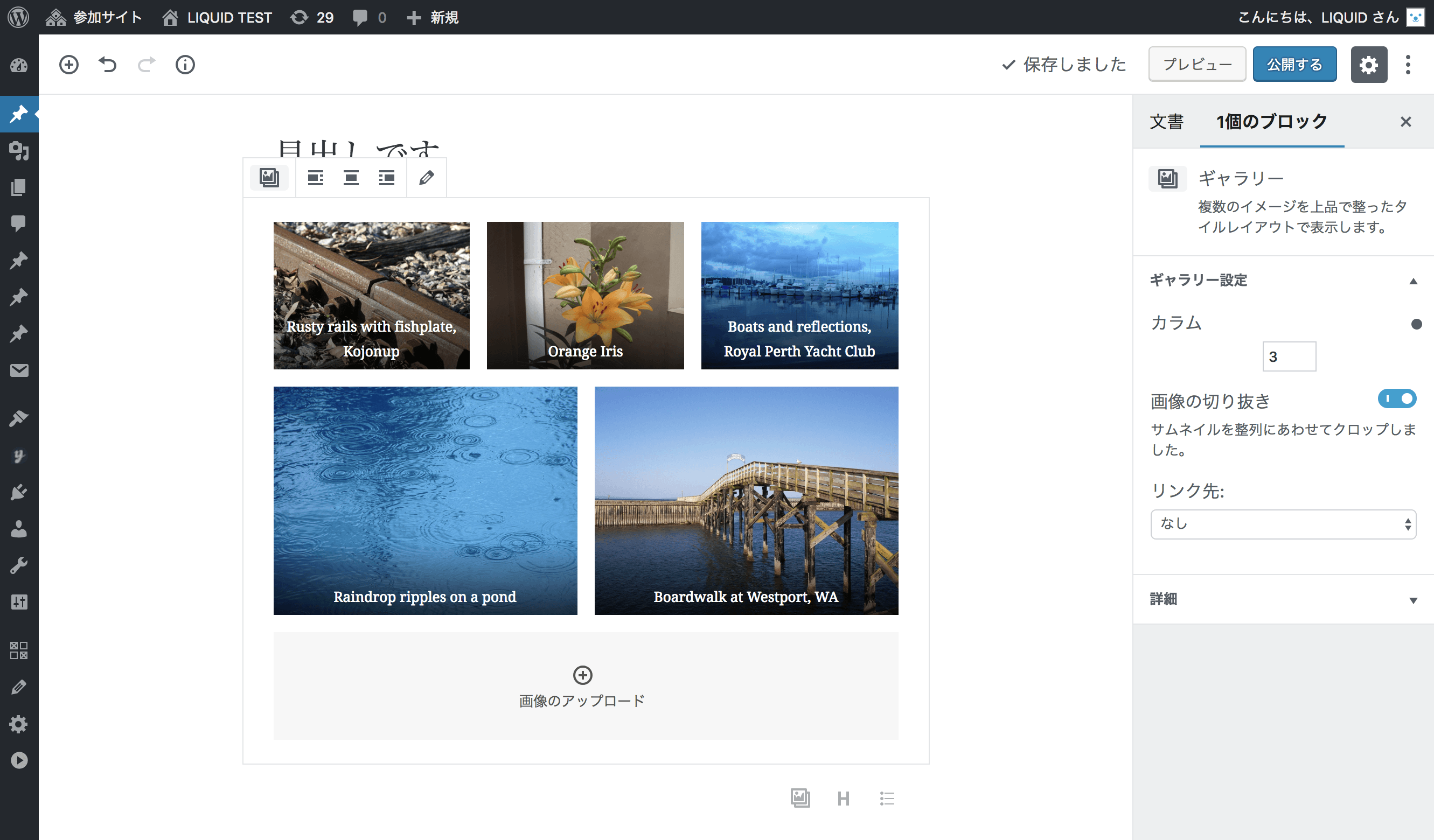
Cover block
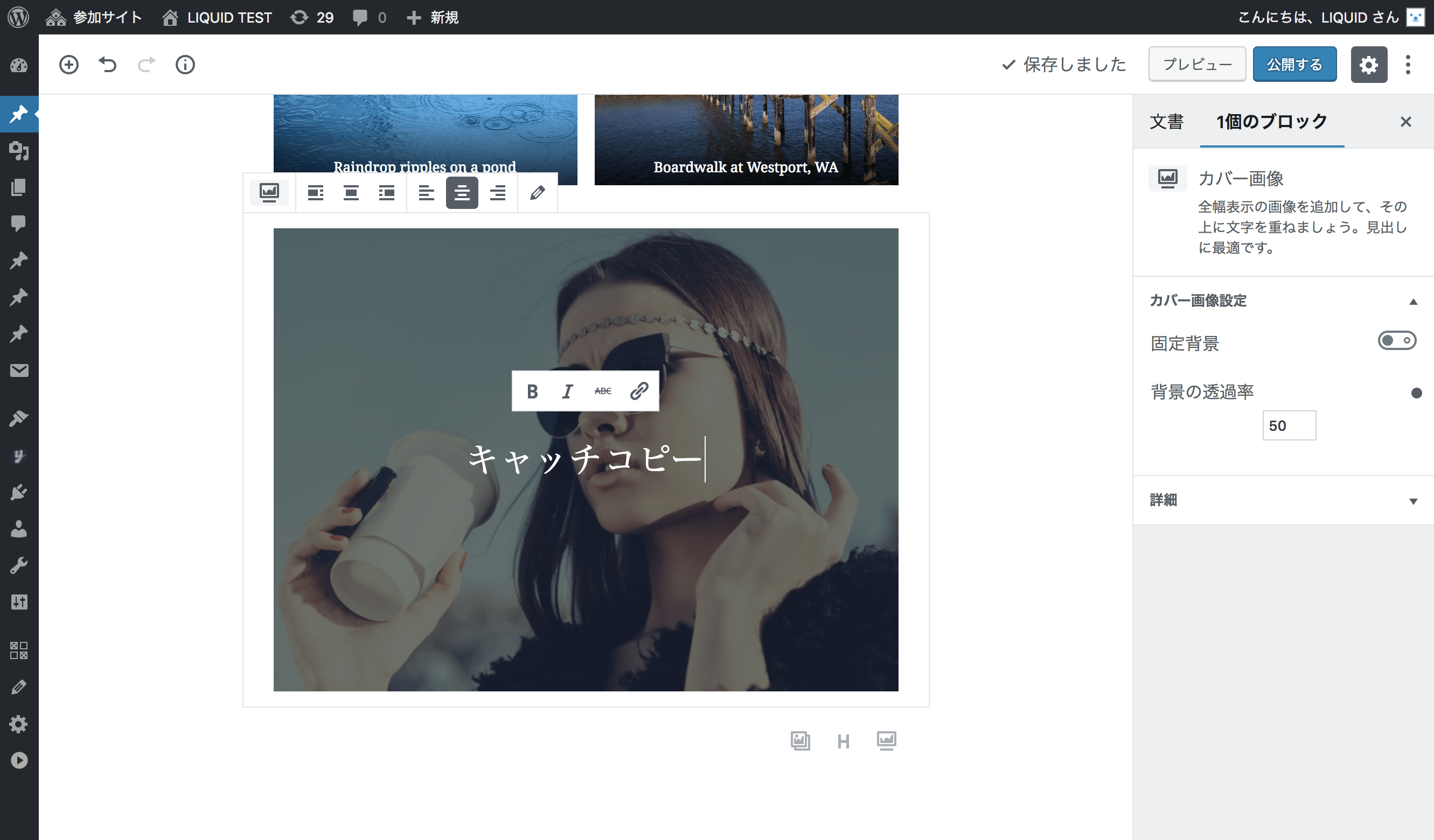
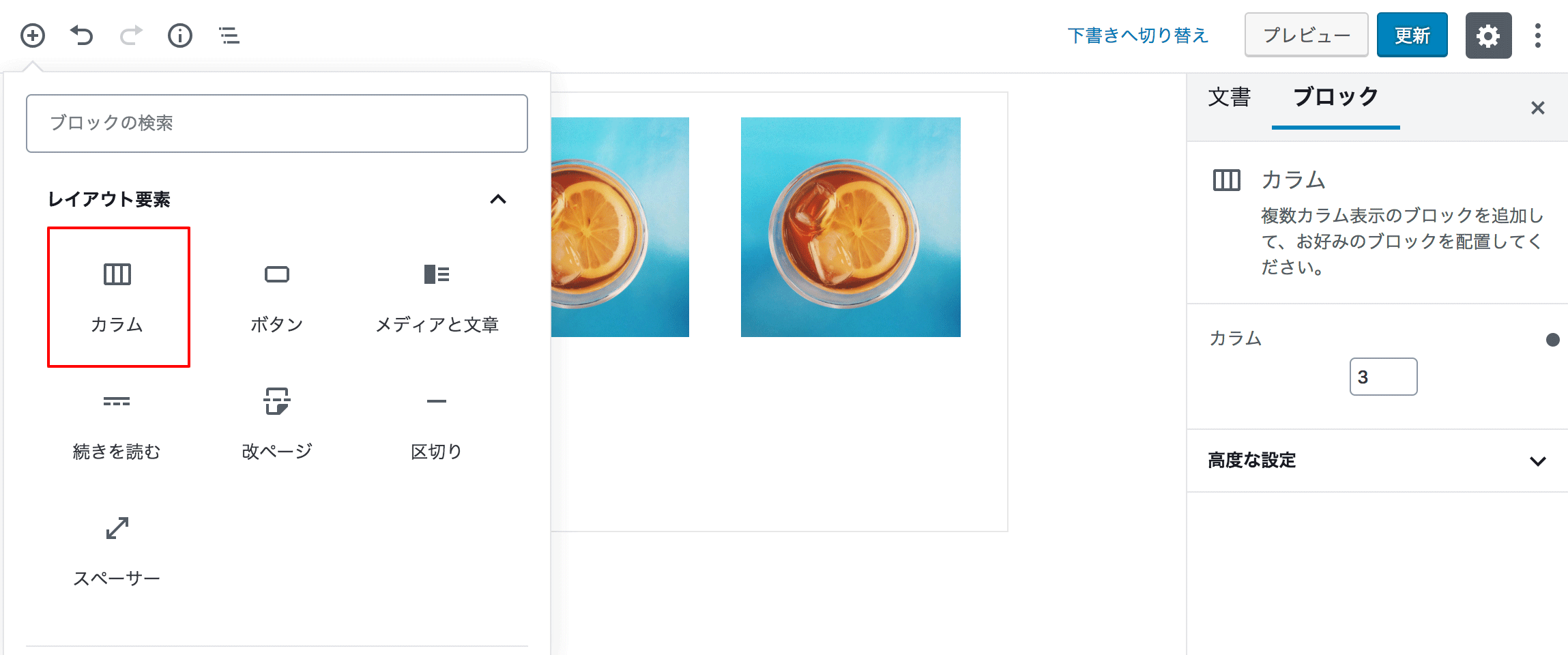
Columns block
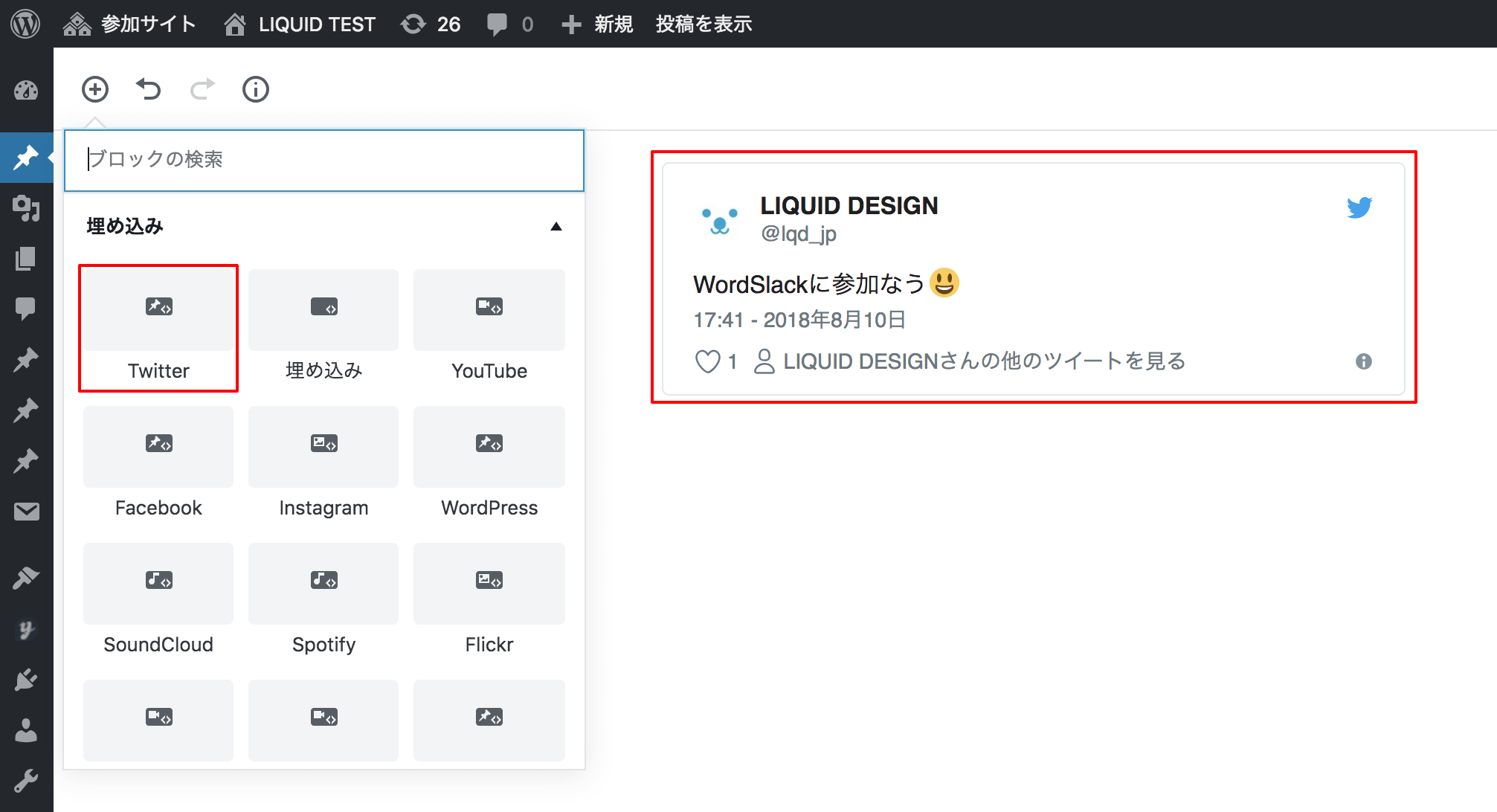
Embed block (YouTube etc.)
-
How to work with blocks
Block color settings
For supported blocks, you can set the background color, text color and so on in the sidebar. In LIQUID PRESS, the color at the very top left is linked to the "theme color".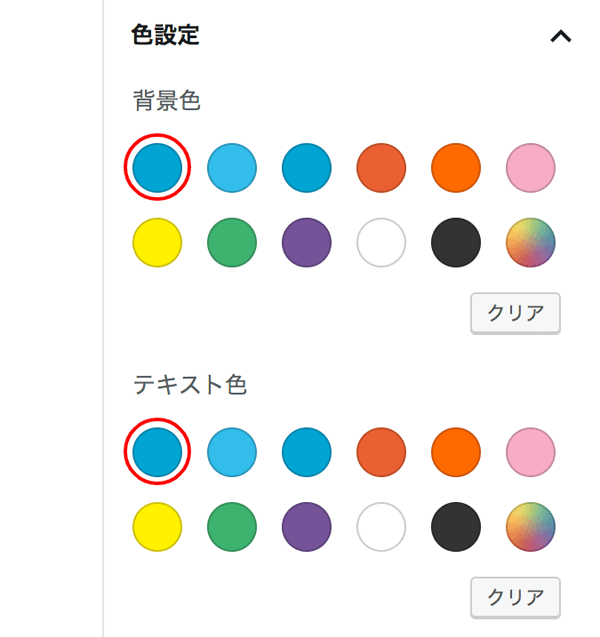
Reordering blocks
When you focus a block, reordering tools appear on the left side.
You can move a block by clicking the up and down icons or by dragging.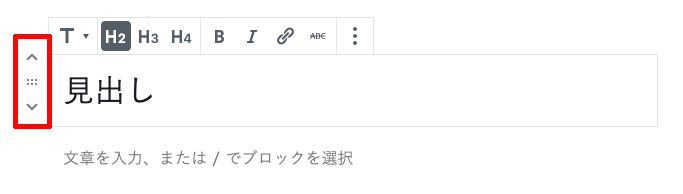
Wide width / full width blocks
For supported blocks, you can choose a wide width or full width layout.
Wide width: displayed slightly wider than a normal block.
Full width: displayed across the full width of the screen. * Intended for single-column pages.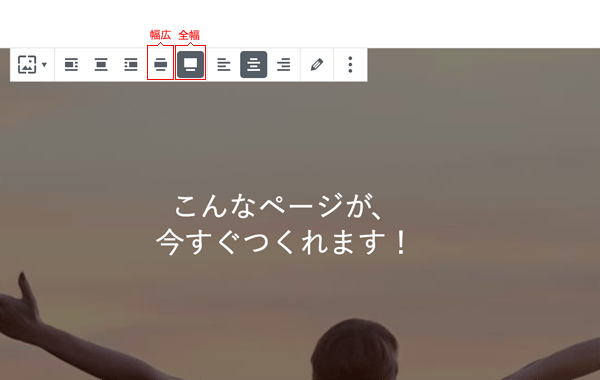
Copying a block
Choose "Copy" from the menu above the block (the three dots). Create a "Paragraph" at the position where you want to paste it, then paste (Ctrl+V or Cmd+V).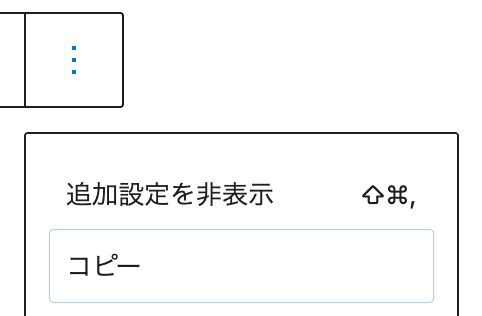
Copy all content
Choose "Copy all content" from the menu at the right of the block (the three dots).
You can then right-click in the body area and choose "Paste".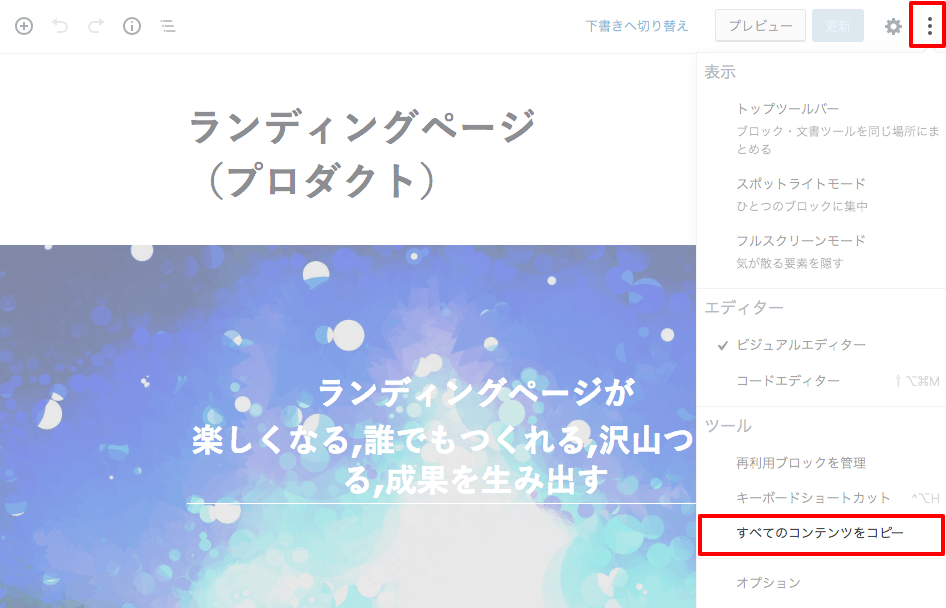
Duplicating a block
You can choose "Duplicate" from the menu at the right of the block (the three dots).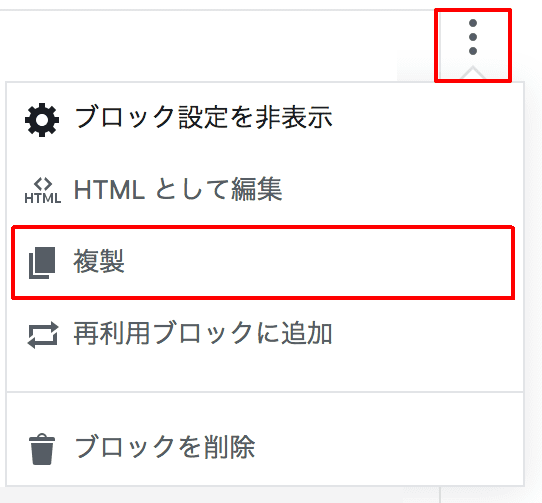
Reusable blocks
This is a feature that lets you save the contents of a block and reuse it. It is handy for saving blocks you use often.
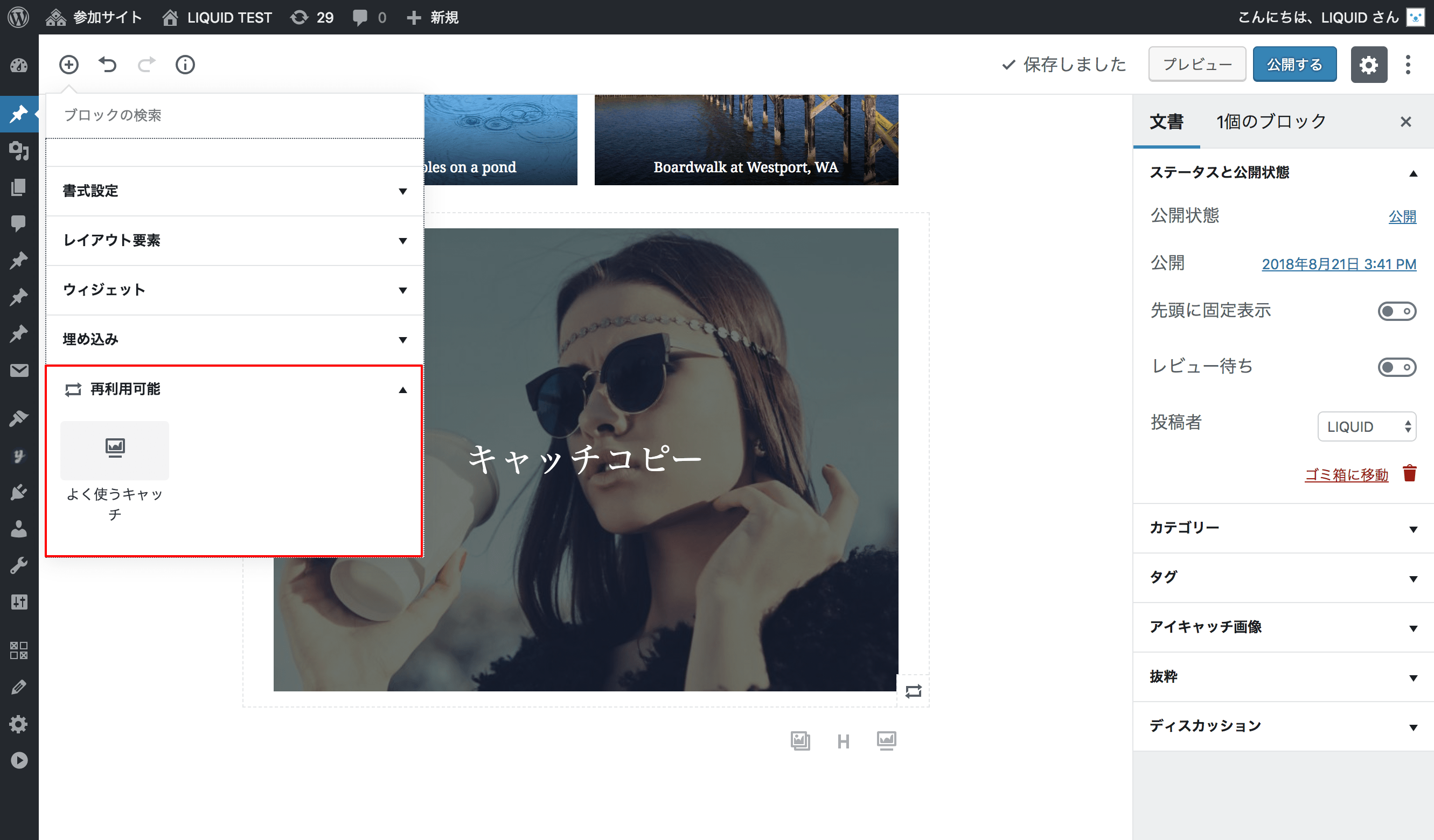
You can choose "Add to reusable blocks" from the menu at the right of the block (the three dots). Give it a name and save it.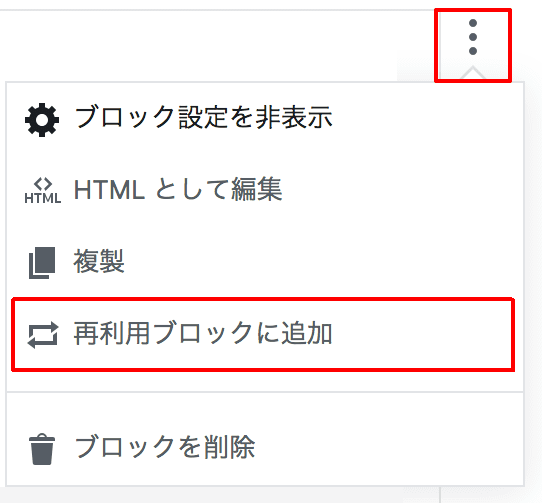 The blocks you have saved appear inside "Reusable". To change one individually, convert it to a regular block and then edit it.
Edit as HTML
You can choose "Edit as HTML" from the menu at the right of the block (the three dots).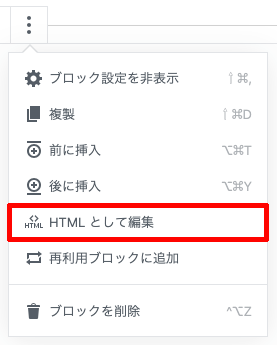
Code editor
You can switch to the "Code editor" from the menu at the top right of the screen (the three dots).
This gives you a mode for editing HTML, like the old text editor.
Note that blocks can be identified by HTML comments.<!-- wp:cover-image -->...<!-- /wp:cover-image -->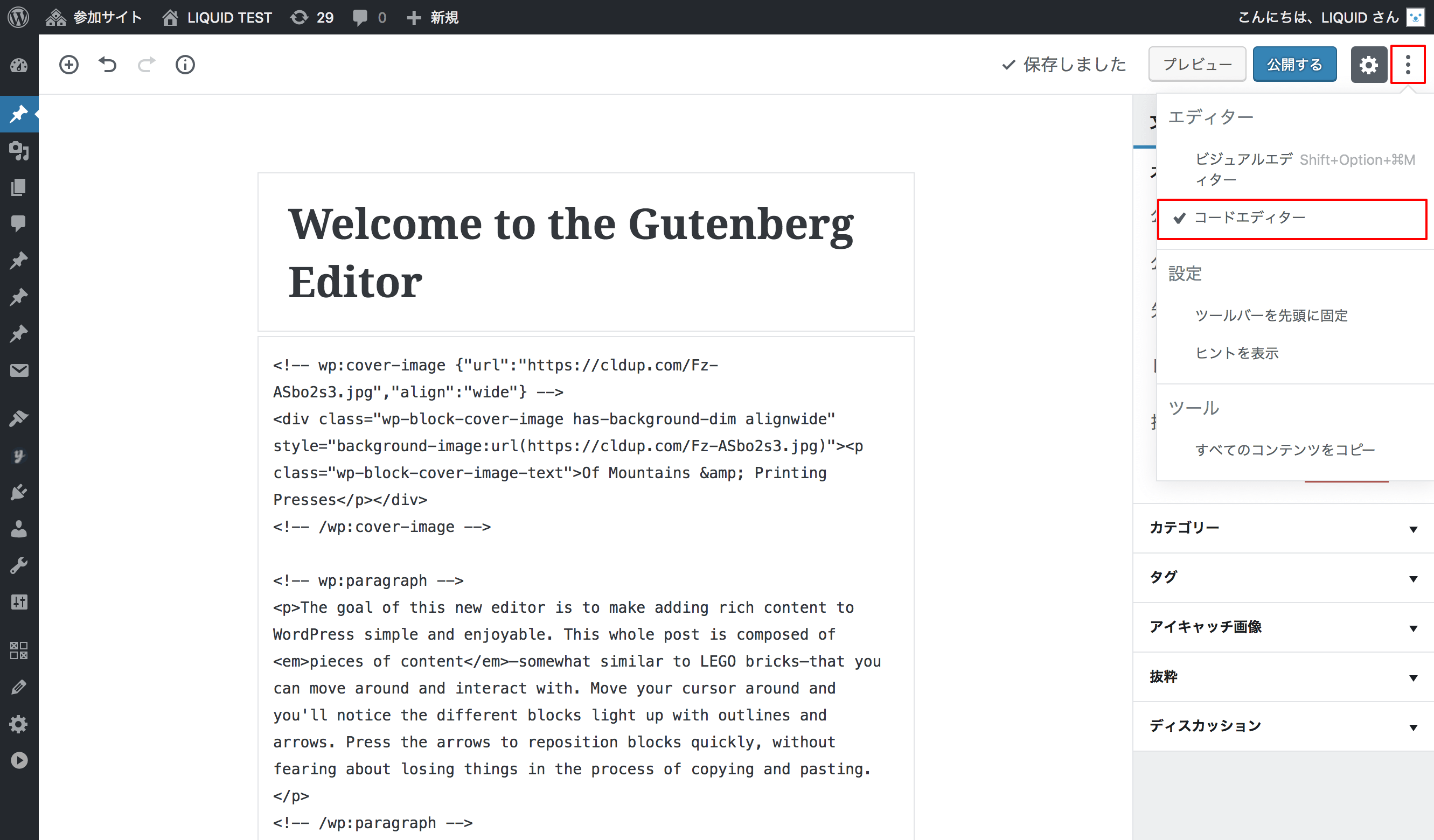
-
Group block
You can select multiple blocks and turn them into a "Group".
With a group block you can set a background color and text color and use it as a section in your design.
For details, please see the video manual.
-
Block styles
Block styles
With LIQUID PRESS, you can easily change the design using block styles.
For details, please see block style design.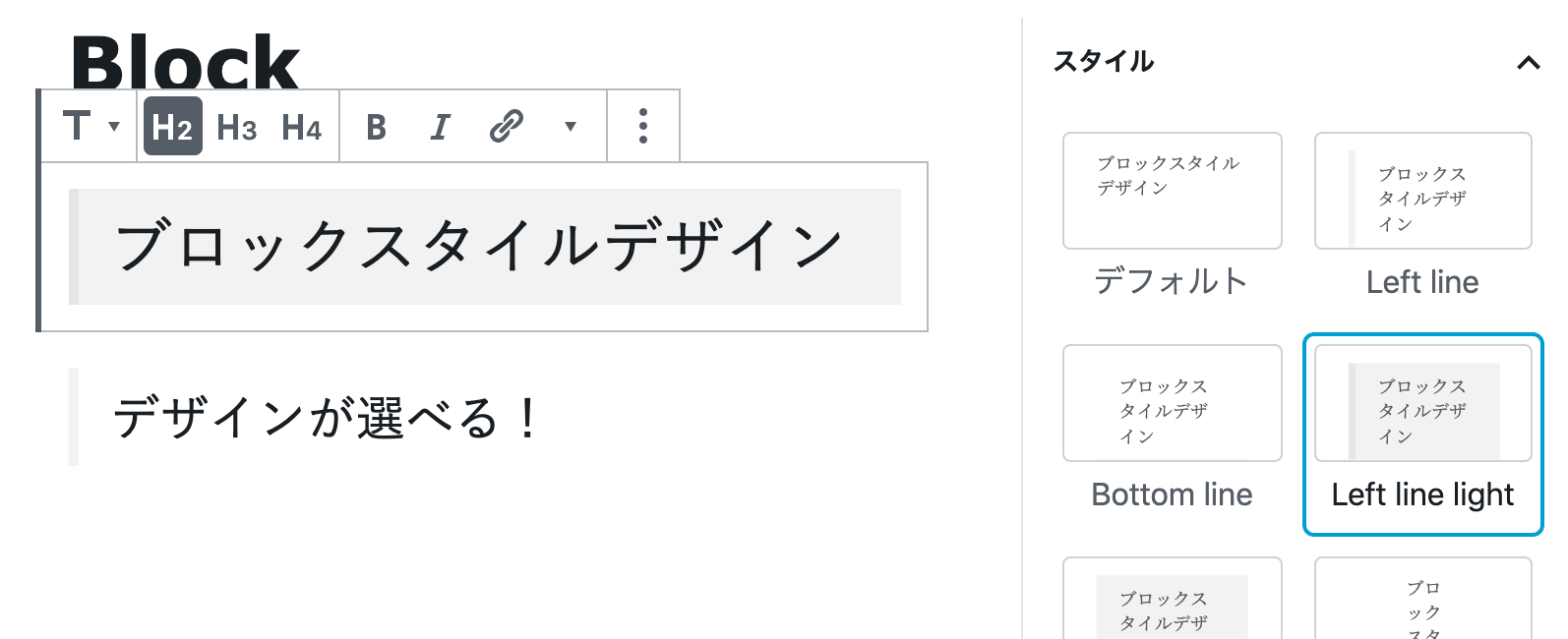
Fonts
You can set the font size and font family.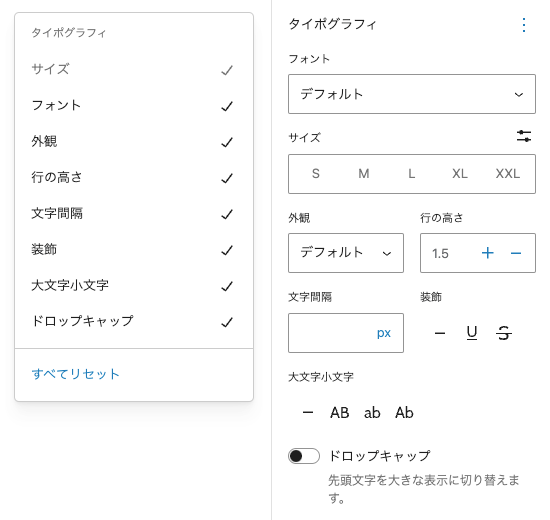
Size (margin, padding)
You can set the margin, the padding, and the spacing between blocks (configurable on group blocks and similar).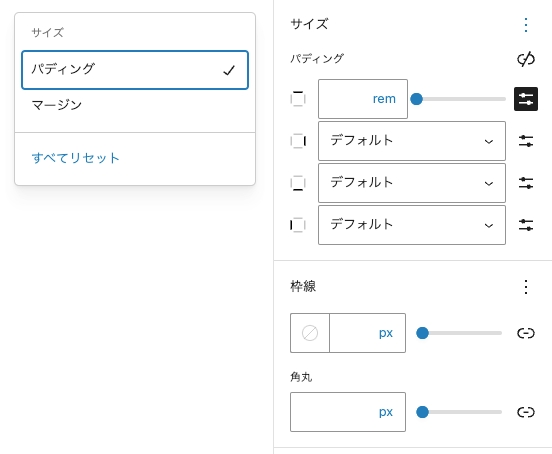
-
Block patterns
The block pattern feature became available from WordPress 5.5.
A block pattern is a design pattern made up of several blocks, such as images and paragraphs, grouped together. It differs from a reusable block in that each instance can be edited individually.
Reusable block: editing it also changes previously placed instances. Converting to a regular block is required to edit one individually.
Block pattern: can be edited individually.
Click the plus icon, then select a block pattern from the "Patterns" tab to insert it.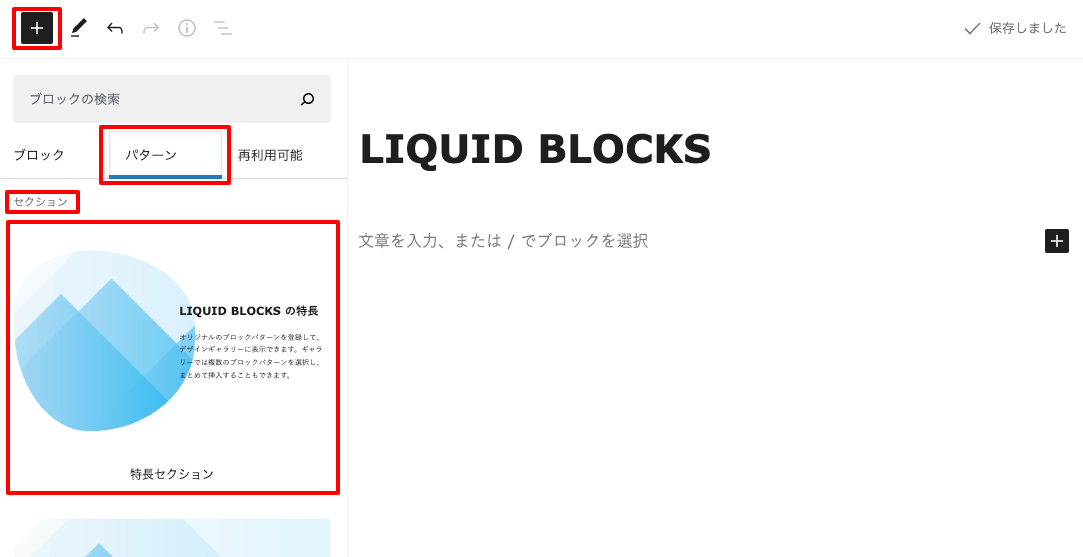
How to create block patterns
You can also create block patterns of your own and add them.
You can create and manage block patterns with the free official WordPress plugin "LIQUID BLOCKS".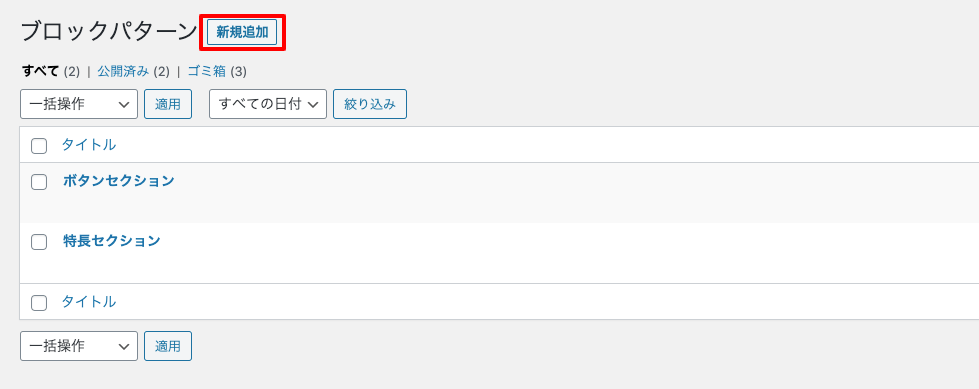 For more details on how to add block patterns, please see below.
Free! Gutenberg block templates LIQUID BLOCKS -
How to customize the design
With LIQUID PRESS you can easily change the design using the block style feature, but you can customize things in even more detail via Settings sidebar > Advanced > Additional CSS class(es).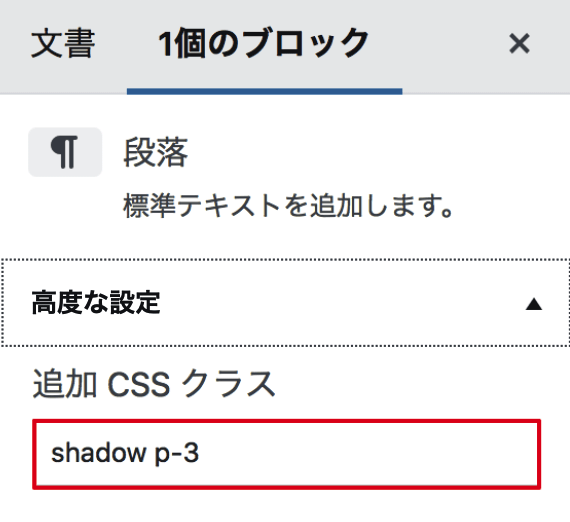
Additional CSS classes
Because LIQUID PRESS supports Bootstrap, you can use a rich set of CSS classes for layout and styling.Block with a shadow
Additional CSS classes: shadow p-3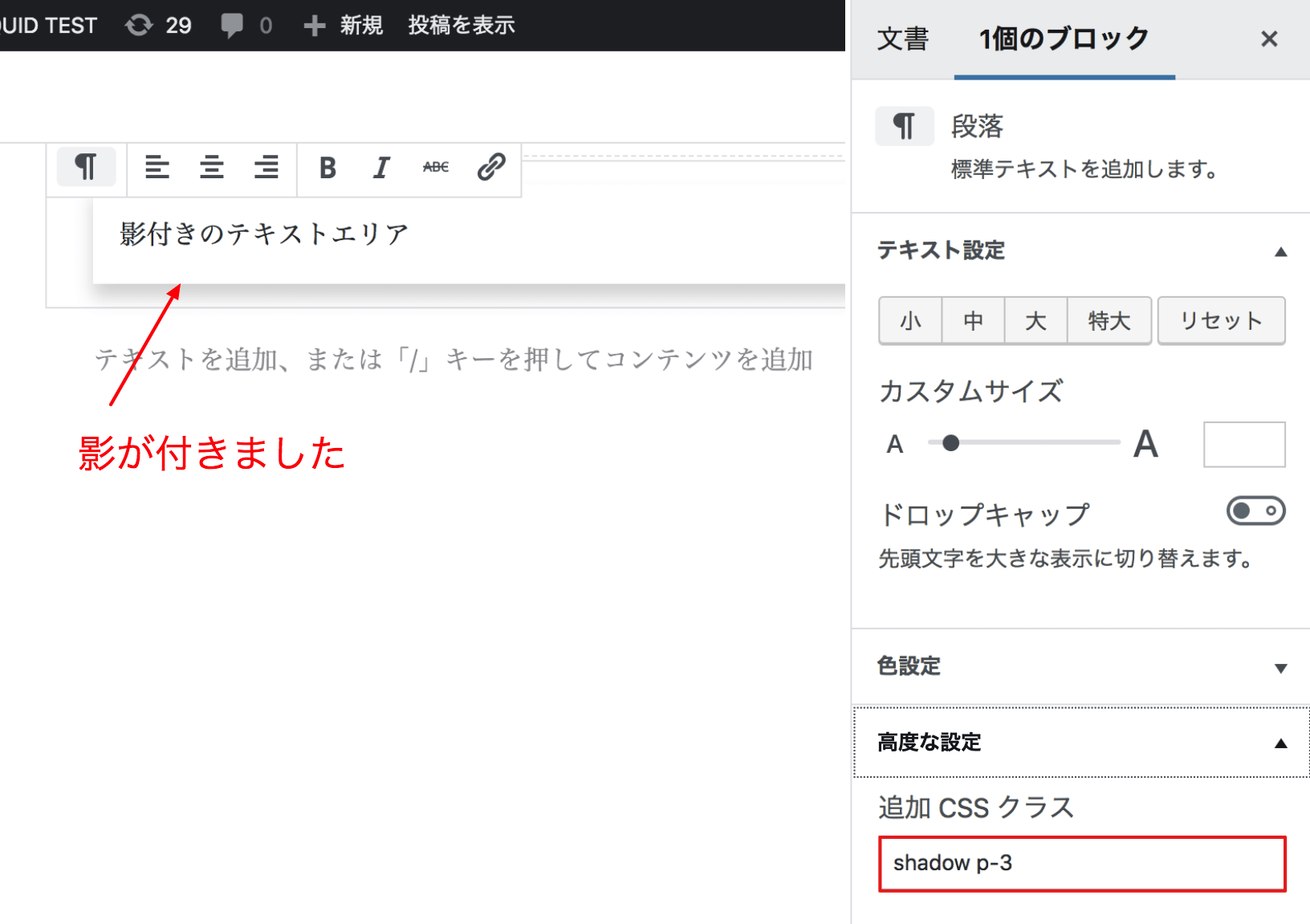
Block with a border
Additional CSS classes: border p-3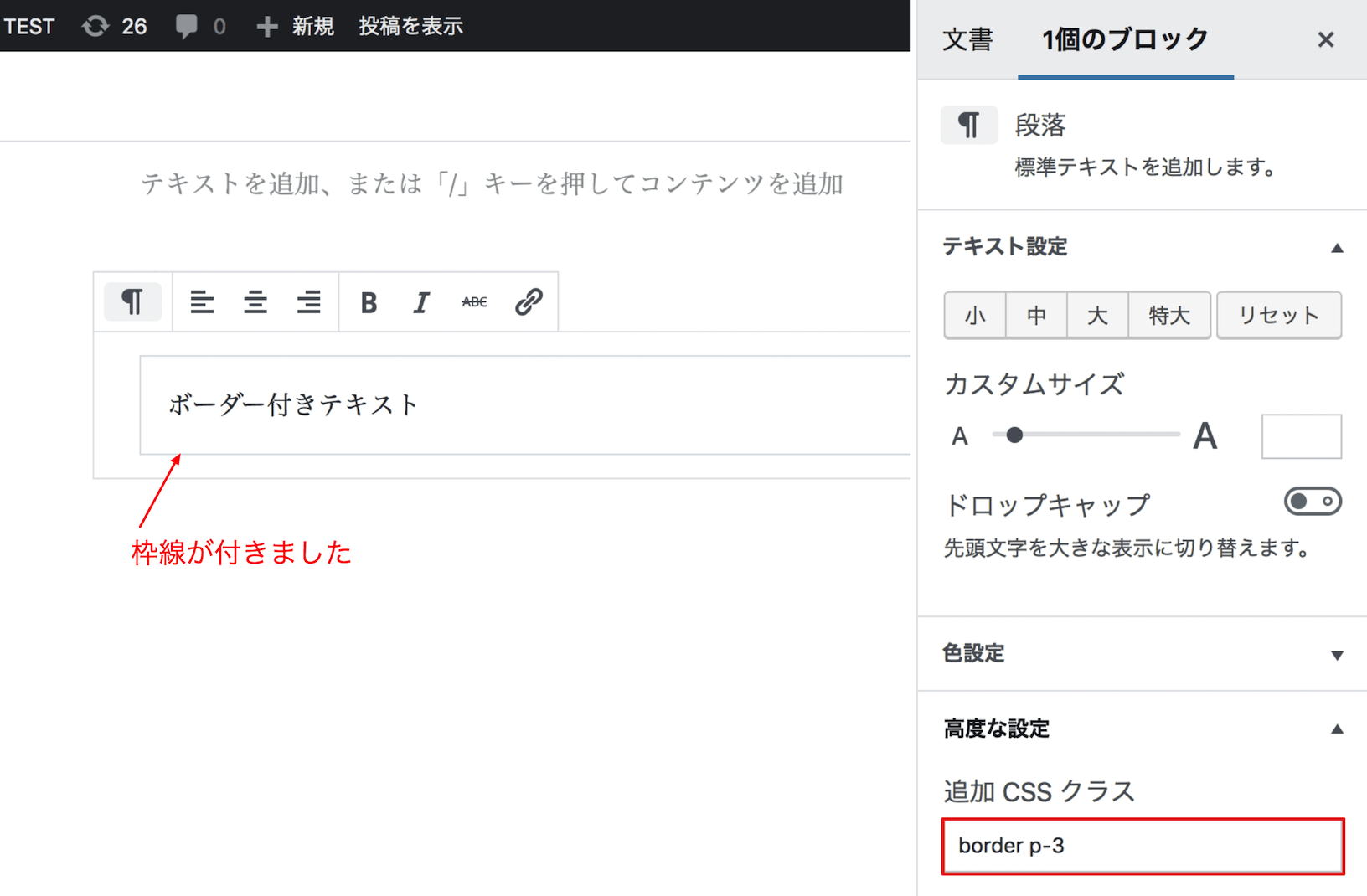
Block with rounded corners
Additional CSS class: rounded or rounded-circle
These can also be applied to images.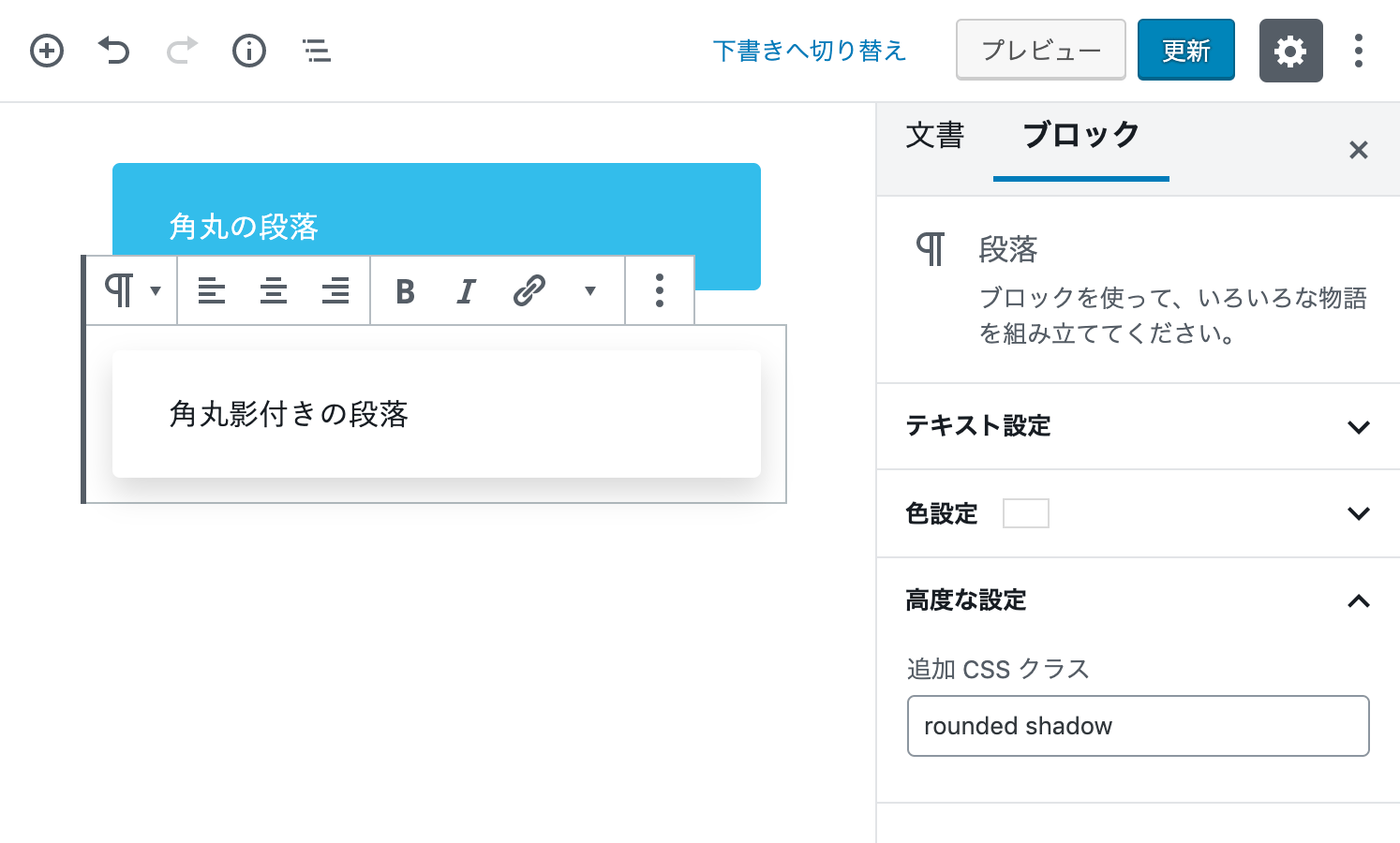
Width size
You can change the width size.
Additional CSS classes: w-25 w-50 w-75 w-100 w-automargin
You can adjust the margin.
Additional CSS classes: m-0 through m-5
Top mt-0 right me-0 bottom mb-0 left ms-0 centered m-autopadding
You can adjust the padding.
Additional CSS classes: p-0 through p-5
Top pt-0 right pe-0 bottom pb-0 left pe-0display
You can change the display property.
d-none d-inline d-inline-block d-block d-table d-flex
For details on the CSS classes you can use, please see this page. -
Showing different content by screen size
With LIQUID PRESS, you can show different blocks on smartphones and on desktops.
Configure this from the block menu > Show by screen size.
You can also control this in more detail with additional CSS. For details, please see display utilities.Changing the order of columns
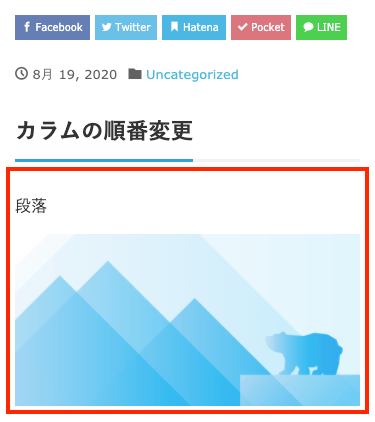
You can change the order of columns between desktop and smartphone.
Example: apply the additional CSS classes order-md-0 order-2 to a "Columns" block.
On desktop, the image comes first (on the left).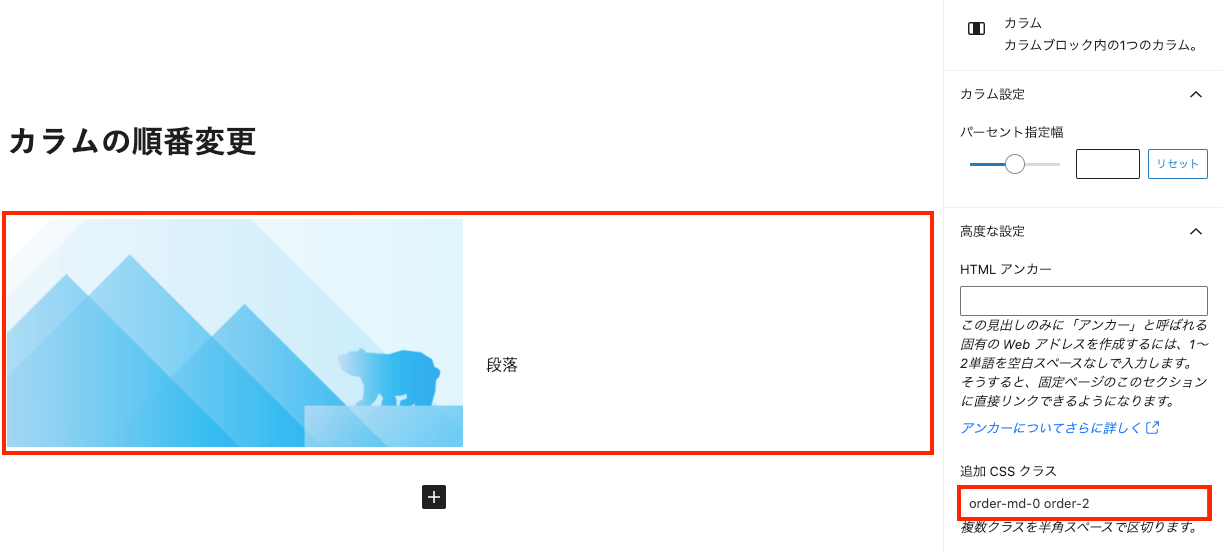 On smartphones, the image comes after (below).
-
Animation
You can set animations on blocks.
Soft appear on scroll: the block appears softly as you scroll.
Fade in: the block fades in as you scroll.
Fade out: the block fades out as you scroll.
Background zoom in: the background image of a cover block zooms in. -
Sliders
This is a free official WordPress plugin that lets you create sliders and slideshows.
For details, please see LIQUID BLOCKS.
You can also easily create column sliders, fade sliders, and manual scrolling sliders.
For details, please see block style design.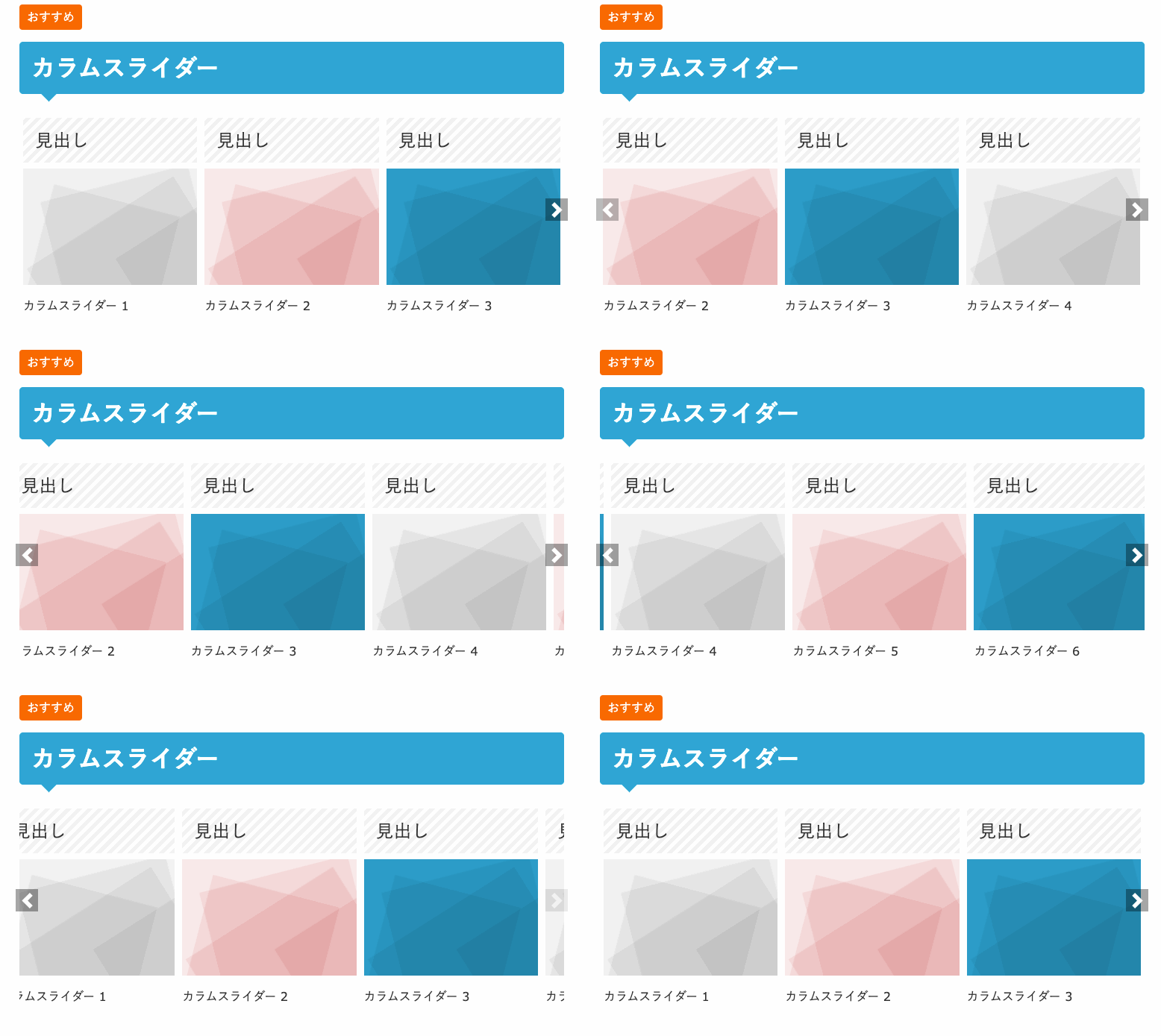
-
Speech balloons
This is a free official WordPress plugin that lets you create conversational speech balloons.
For details, please see LIQUID SPEECH BALLOON.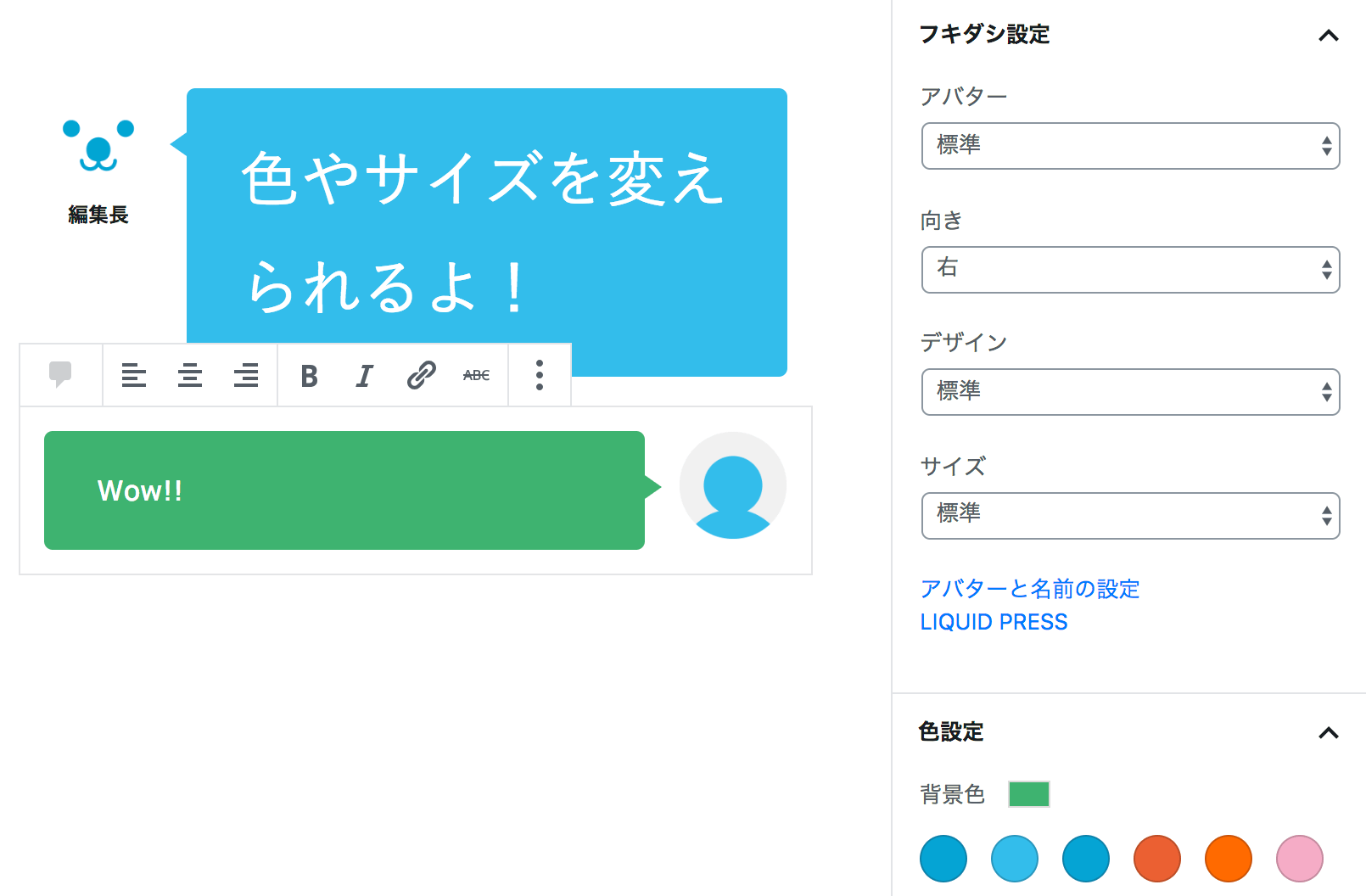
LIQUID PRESS is committed to advancing support for the WordPress block editor.